Broadcom WiFi on macOS Sonoma, Sequoia and Tahoe is no longer a dead end—AppleBCMWLANCompanion (BCMC) brings a subset of Broadcom FullMAC cards back without hacking the kernel to pieces.
What Is AppleBCMWLANCompanion (BCMC) and When Should You Use It?
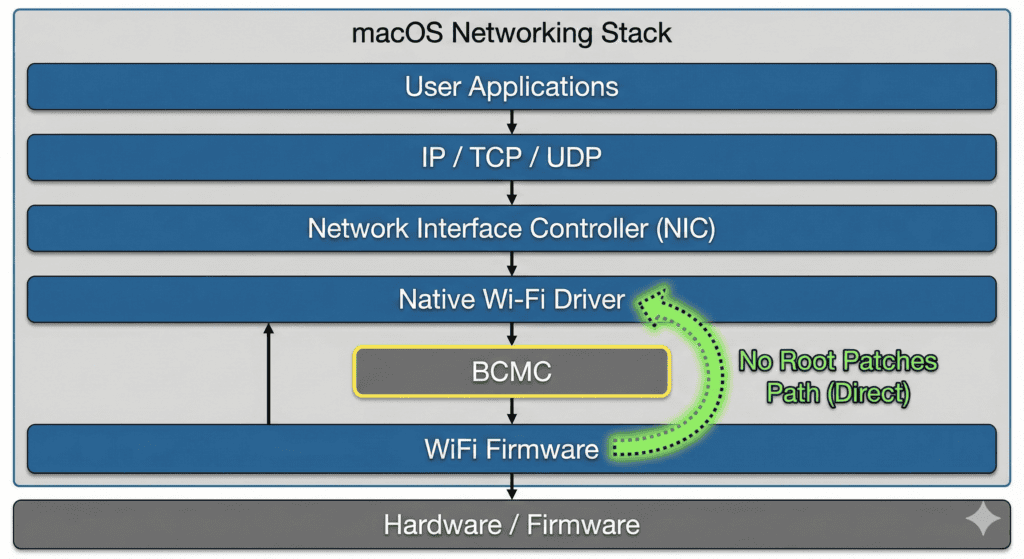
AppleBCMWLANCompanion (BCMC) is a user‑space companion and set of kernel extensions that restore support for specific Broadcom FullMAC Wi‑Fi chipsets on macOS Sonoma, Sequoia and Tahoe without using root‑level binary patches, and you should use it when you have a supported FullMAC card that no longer works with Apple’s stock drivers.
BCMC lives in the AppleBCMWLANCompanion GitHub repository and is built around real‑world Hackintosh feedback from a ~400‑post InsanelyMac thread titled “Broadcom FullMAC Wi‑Fi support on macOS Sonoma, Sequoia and Tahoe without root patches.” The project combines:
- A companion process that manages firmware loading and configuration.
- A Lilu‑based plugin and related kext logic to cooperate with Apple’s native Wi‑Fi stack instead of replacing it.
- A configuration surface (device properties and boot‑args) tuned for a small set of Broadcom FullMAC chips.
BCMC is explicitly described as experimental. The notes characterize the current state as public beta, not ready for every Broadcom card or for all production machines. It assumes that you are comfortable with OpenCore, kext management and log‑driven debugging rather than one‑click installers.
Which macOS Versions and Broadcom FullMAC Cards Does BCMC Support?
BCMC targets specific builds of Sonoma, Sequoia and Tahoe and focuses on a narrow set of Broadcom FullMAC chipsets that the author has validated.
From the initial status list:
| macOS version | Build ID | Status |
|---|---|---|
| Tahoe 26.0 | 25A354 | Supported |
| Sequoia 15.7 | 24G222 | Supported |
| Sonoma 14.8 | 23J21 | Not verified yet |
For Wi‑Fi hardware, the early public target set is:
| Chipset | PCI IDs | Status |
|---|---|---|
| BCM43602 | 0x14E4, 0x43BA | Main focus of early work; used in a Fenvi success story on Tahoe. |
| BCM4350 | 0x14E4, 0x43A3 | Supported but cannot currently connect to WPA/WPA2‑protected networks. |
| BCM4360 | — | Not listed as supported; consult the official AppleBCMWLANCompanion documentation for current status. |
How Does BCMC Enable Broadcom FullMAC Wi‑Fi Without Root Patches?
BCMC enables Broadcom FullMAC Wi‑Fi on modern macOS by delegating work to a companion and the firmware instead of rewriting Apple’s kernel Wi‑Fi drivers with root patches.
From the project overview and technical notes in the thread and official documentation:
- BCMC uses a user‑space companion (AppleBCMWLANCompanion) to talk to the FullMAC device, load firmware and configure the card.
- Firmware blobs live in a filesystem location such as /usr/local/share/firmware/wifi/, with filenames tied to the chipset (for example, a 4350 firmware file named in the form brcmfmac4350-pcie_7.35.180.119.bin).
- The companion verifies the firmware’s SHA‑256 hash before using it, so configuration mistakes or corrupted downloads are easier to detect.
- A Lilu plugin and patcher component adjust the behavior of the native Wi‑Fi driver so that it cooperates with BCMC rather than being replaced by a third‑party kext.
- Device properties provide BCMC with the information it needs at boot time: which firmware to load, what SROM offset to use on certain chips, what country code to apply, and how to interact with AppleVTD and IOMapper.
The net effect is that you keep Apple’s Wi‑Fi stack but convince it to work again with a limited set of Broadcom FullMAC cards by injecting the right firmware and configuration at the right moments in the boot process.
Step‑by‑Step: Setting Up BCMC Broadcom WiFi on Sonoma, Sequoia and Tahoe
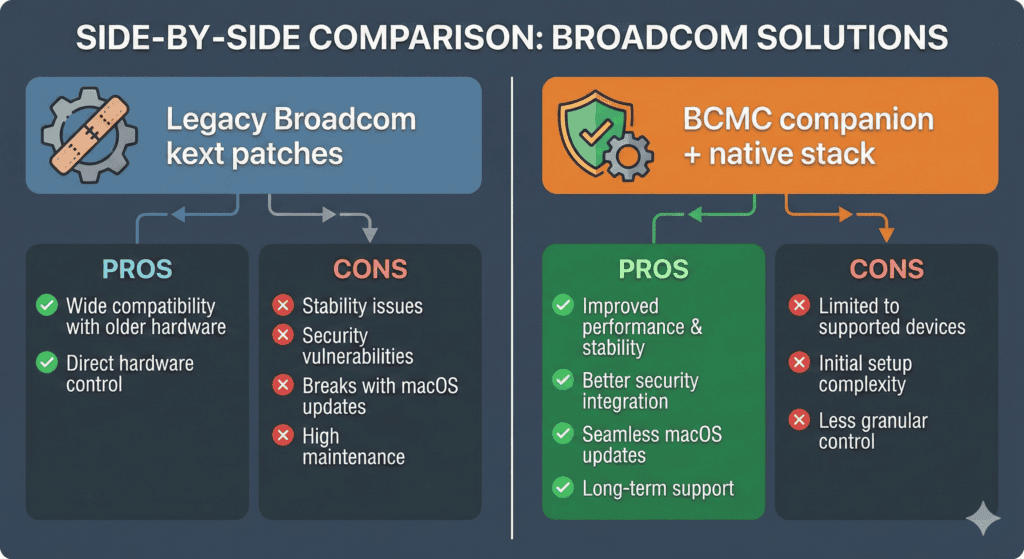
To set up BCMC on Sonoma, Sequoia and Tahoe, you follow an eight‑step process that closely matches both the official GettingStarted guide and the community thread.
1. Verify your hardware and macOS version
The first step is to make sure your card and OS are within scope.
- Confirm that your Wi‑Fi chip and PCI IDs match a supported Broadcom FullMAC device, such as BCM43602 (0x14E4, 0x43BA) or BCM4350 (0x14E4, 0x43A3).
- Confirm that you are running a supported macOS build, such as Tahoe 26.0 (25A354) or Sequoia 15.7 (24G222). Sonoma 14.8 (23J21) appears in the notes as “not verified yet,” so it should be treated cautiously until you have up‑to‑date confirmation.
This check is not paperwork—it is where many failed attempts start. The thread contains multiple posts from users assuming that “Broadcom equals supported,” only to discover that their precise chipset or PCI IDs place them outside BCMC’s scope.
2. Clean up prior Wi‑Fi patches and check system integrity
BCMC expects a clean baseline without overlapping experimental Wi‑Fi hacks.
The raw data shows users asking if BCMC can coexist with tools such as OpenCore Legacy Patcher Wi‑Fi patches or MyKextInstaller‑based fixes. Responses emphasize that mixing too many partial solutions can result in brittle systems where it is no longer obvious which component is responsible for a panic or a missing feature.
Before enabling BCMC you should therefore:
- Remove or disable prior Wi‑Fi patch stacks—especially OCLP Wi‑Fi kexts and any patches that change IOSkywalkFamily.
- Review SIP/AMFI status and any root patches. If previous solutions modified Apple Wi‑Fi binaries directly, revert them following their own documentation.
This aligns with the project’s focus: keep Apple’s drivers as intact as possible and use BCMC to bridge the gap, rather than layering multiple invasive modifications.
3. Enable VT‑d and AppleVTD where appropriate
BCMC treats IOMMU behavior as a first‑class concern because AppleVTD influences how DMA‑capable devices such as Wi‑Fi and Ethernet controllers behave.
According to the documentation and thread:
- You should enable VT‑d in firmware on systems that support it.
- In OpenCore’s Kernel -> Quirks section you should avoid forcing DisableIoMapper unless you have a specific reason to bypass AppleVTD for troubleshooting.
- BCMC exposes a device property, bcmc-disable-io-mapper, that can control whether the native Wi‑Fi driver uses IOMapper when AppleVTD is active. This is meant as a targeted knob for VTD‑related problems rather than a default setting.
Other parts of the Hackintosh ecosystem show up here too. The thread includes discussions of Ethernet drivers such as RealtekRTL8111.kext and LucyRTL8125Ethernet.kext interacting with AppleVTD under Tahoe. That reinforces the idea that Wi‑Fi configuration cannot be considered in isolation from the rest of the platform.
4. Install and verify the firmware
BCMC depends on the correct firmware blob being present on disk and verified.
The GettingStarted documentation and thread describe a consistent pattern:
- Place the Broadcom firmware in /usr/local/share/firmware/wifi/ with a chipset‑appropriate name, such as a brcmfmac4350-pcie_… file for BCM4350 cards.
- Use a command such as shasum -a 256 to compute the firmware’s SHA‑256 hash and compare it against the expected value from your source.
- Set the bcmc-firmware-path property to the absolute firmware path and bcmc-firmware-hash to the hash so that the companion can validate the file before use.
This verification step is not optional decoration. It is part of BCMC’s design to treat firmware as a controlled input and to fail predictably if the firmware does not match what was configured.
5. Discover the PCI device path
BCMC needs to know exactly which PCI device it is supposed to manage.
The documentation recommends using tools such as gfxutil or OpenCore logs to discover the PCI path, for example:
PciRoot(0x0)/Pci(0x1C,0x1)/Pci(0x0,0x0)
This path then becomes the key under which you attach BCMC’s device properties in your bootloader’s configuration. When users mis‑identify the path or apply properties to the wrong device, BCMC simply does not attach where they expect it to.
6. Add required device properties
Once you have the correct PCI path, you define BCMC’s device properties under that device in OpenCore or your bootloader of choice.
The DeviceProperties documentation groups these properties by function. The most important for a typical setup are:
- bcmc-firmware-path — absolute path to the firmware file.
- bcmc-firmware-hash — SHA‑256 checksum of the firmware file.
- bcmc-srom-slide — offset into the SPROM area where SROM data is stored, particularly relevant for BCM4350.
- bcmc-default-country-code — two‑letter country code such as US or GB.
- bcmc-enable-auto-country — whether the firmware should attempt to auto‑set the country.
- bcmc-disable-io-mapper — control over IOMapper usage when AppleVTD is active.
Advanced camouflage properties can also be set to present your card as a different SKU, but those are usually reserved for more specialized scenarios.
7. Install AppleBCMWLANCompanion kexts and set boot arguments
The next step is to install BCMC’s kexts and provide any necessary boot arguments.
From the docs and thread:
- AppleBCMWLANCompanion’s kexts should be added to your OpenCore configuration so that they load after Lilu.
- In the Tahoe Fenvi success story (described later), the user sets the boot argument wlan.pcie.detectsabotage=0 in boot-args.
- BCMC’s own boot arguments, such as -bcmcoff, -bcmcbeta, -bcmcpbo and -bcmcnocore, are provided for debugging, testing on unsupported systems or deliberately disabling pieces of BCMC. The documentation stresses that most users do not need them in day‑to‑day use.
The combination of kext order, device properties and boot arguments defines how BCMC interacts with both the chipset and macOS.
8. Verify that BCMC is active
After configuration, you confirm that BCMC is active rather than assuming it is working.
We suggest:
- Running kextstat | grep bcmc to confirm that the BCMC kext is loaded.
- Running sudo dmesg | grep bcmc to look for lines that show AppleBCMWLANCompanion starting, reporting its version and processing the kernel.
Only after these checks do users in the thread proceed to test scanning, connecting, sleep/wake and OTA updates.
Essential Device Properties for Broadcom FullMAC Wi‑Fi
BCMC’s device properties tell the companion exactly how to treat each card, from firmware location to country code and optional camouflage behavior.
The DeviceProperties documentation groups these into several categories. Condensed from the raw data, the core properties look like this.
Firmware and AppleVTD‑related properties
| Property | Purpose | Typical use |
|---|---|---|
| bcmc-firmware-path | Absolute path to the firmware file on disk. | Required so BCMC can find the firmware. |
| bcmc-firmware-hash | SHA‑256 checksum of the firmware file. | Required so BCMC only loads the intended binary. |
| bcmc-disable-io-mapper | Control whether the native driver uses IOMapper with VTD. | Used when AppleVTD causes issues; tuned per system. |
These three properties jointly determine where BCMC pulls firmware from, whether it trusts what it finds and how the native driver behaves when AppleVTD is enabled.
Chip, SROM and regulatory properties
| Property | Purpose | Notes from data |
|---|---|---|
| bcmc-srom-slide | Offset into SPROM where chip SROM is stored. | Required for certain cards like BCM4350. |
| bcmc-default-country-code | Two‑letter country code used at firmware startup. | Often set explicitly (for example, GB or US) because nothing is hard‑wired. |
| bcmc-enable-auto-country | Whether firmware should set country automatically. | Defaults to enabled; can be tuned when debugging channels and availability. |
Thread participants emphasize that nothing about a card’s country is truly fixed. Instead, devices rely on configuration, which is why explicitly setting bcmc-default-country-code is often recommended even when bcmc-enable-auto-country is left on.
Camouflage properties (advanced)
BCMC also exposes advanced properties such as bcmc-fake-chip-number, bcmc-module-instance, bcmc-chip-otp, bcmc-user-otp and bcmc-sku-override. These are used to present the card as a different SKU (for example, mimicking a BCM4364‑like configuration) when firmware or driver behavior depends on that identity.
For most readers, these camouflage options are better covered in a dedicated [Link: OpenCore device properties] article or advanced appendix. The main setup guide can usually focus on firmware path/hash, SROM slide and country‑code options.
Optional Boot Arguments for BCMC and When They Matter
BCMC’s boot arguments are designed primarily for debugging, testing edge cases or deliberately disabling parts of the stack, not as checkboxes to tick in every configuration.
From the BootArguments documentation:
- Lilu‑related switches
- -bcmcoff turns off the BCMC Lilu plugin entirely.
- -bcmcbeta allows enabling the plugin on otherwise unsupported macOS versions.
- Chip configurator switch
- -bcmcpbo tells BCMC to probe the Wi‑Fi chip only and skip loading the full driver, which is useful when you want to gather chip information without altering system behavior.
- Native driver behavior
- -bcmcnocore prevents the core layer of the native Wi‑Fi driver from initializing, effectively stopping that driver from loading.
Beyond those, community examples include general boot‑args such as wlan.pcie.detectsabotage=0 on Tahoe in at least one Fenvi BCM43602 configuration.
A practical guide should explain what these flags do and then be explicit that they are not required for most everyday setups. They are levers to reach for when you have a specific problem to investigate.
Known Limitations, AWDL Gaps and Stability Risks
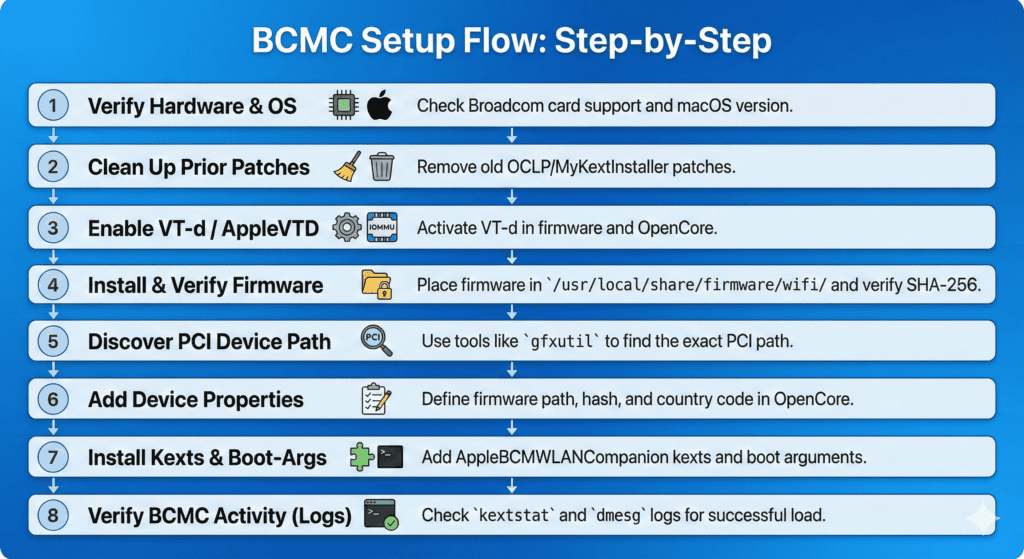
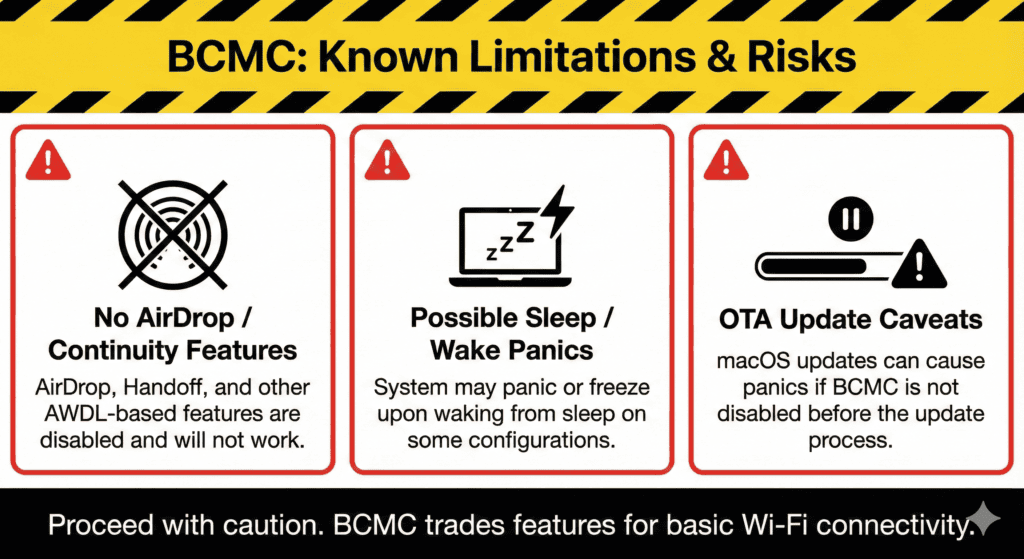
BCMC’s Issues documentation and the InsanelyMac thread agree that you gain modern Wi‑Fi support on newer macOS versions in exchange for missing AWDL‑based features and accepting certain stability risks.
General limitations across supported cards
| Area | Behavior described in data |
|---|---|
| AWDL / Continuity | AWDL is not available, so AirDrop and related Continuity features are not working on BCMC‑managed cards. |
| Internet Sharing | Sharing an internet connection to the Wi‑Fi adapter may not behave correctly. |
| Power management | Sleep and wake can trigger kernel panics on some systems. |
| OTA updates (Tahoe) | Enabling BCMC during a macOS Tahoe OTA leads to a panic in the final stage; the workaround is to disable BCMC before the OTA and re‑enable it afterwards. |
These entries are not abstract warnings. The thread contains repeated mentions of AirDrop discovery with failed transfers, systems that freeze or panic only on wake and OTA updates that only succeed reliably when BCMC is turned off beforehand.
Card‑specific issues
From the Issues documentation and thread:
- BCM4350
- Connecting to WPA/WPA2‑protected networks is not currently supported because the firmware does not offload the WPA four‑way handshake as the driver expects.
- BCM43602
- The Wi‑Fi menu can report a transmit rate stuck around 24 Mbps while actual throughput is higher; switching firmwares is constrained by the need for WPA offload support.
When evaluating whether BCMC is appropriate for a given system, these card‑specific limitations matter as much as the general ones. A user who must connect to WPA2 networks with a BCM4350 will simply not be served by BCMC in its current form.
Real‑World Example: Fenvi BCM43602 on macOS Tahoe
A Reddit “Successfully Fenvi / Broadcom on TAHOE” post provides a concrete configuration that aligns with BCMC’s official guidance and the behaviors seen in the thread.
Hardware and OS context
According to the summarized notes, the successful system used:
- A PCIe Fenvi card with a Broadcom BCM43602 chipset.
- macOS Tahoe 26.x (beta build) with VT‑d enabled.
This places the setup squarely inside BCMC’s intended target space: a supported chipset on a supported Tahoe build with modern IOMMU features active.
Configuration highlights
The user’s checklist, as captured in the raw data, includes:
- Platform features
- VT‑d enabled in BIOS.
- DisableIoMapper turned off in OpenCore so AppleVTD is actually active.
- BCMC setup
- Broadcom firmware downloaded and its hash verified against the expected value.
- Required device properties added, including country code and auto‑country behavior.
- AppleBCMWLANCompanion.kext added to the kernel section so that it loads with the rest of the kext stack.
- Boot arguments
- wlan.pcie.detectsabotage=0 added to boot-args.
- Removal of conflicting Wi‑Fi solutions
- Prior OCLP Wi‑Fi kexts disabled or removed.
- Old IOSkywalkFamily patches removed from Kernel -> Block.
Each of these steps maps cleanly to the conceptual setup process described earlier: start from a clean base, configure firmware and device properties, integrate BCMC into the kext stack and tune low‑level platform features such as VT‑d.
Observed results and caveats
On this build the reported results are:
- Wi‑Fi works for everyday use on Tahoe with the Fenvi BCM43602 card and BCMC enabled.
- At the time of the post, AirDrop can see nearby devices but send/receive fails, consistent with BCMC’s documented lack of AWDL support.
- Follow‑up comments note that Ethernet behavior can change when AppleVTD is enabled. Some users encounter issues while others report success after adjusting PCI mappings and related settings.
This report does not guarantee success for every BCM43602 owner or every Fenvi card. What it does provide is a grounded example of how the theory in the documentation and the long thread converges into a working configuration.
Troubleshooting Patterns from Community Thread
The InsanelyMac thread functions as an informal troubleshooting manual shaped by hundreds of iterative experiments.
Several patterns emerge from the raw data:
- Ethernet‑first, then Wi‑Fi
- Many builds start from a stable Ethernet‑only baseline and add BCMC step by step. This avoids debugging overlapping network issues during the early bring‑up of BCMC.
- One change at a time
- Successful testers typically change a single variable—firmware version, country code, boot‑arg, AppleVTD setting—and then check logs and behavior before moving on. By contrast, making many changes at once leaves them unable to tell which modification was responsible for a panic or regression.
- Focus on logs and reproducible scenarios
- Kernel logs showing messages such as Couldn’t alloc class “AppleBCMWLANCompanion” are captured and used as anchors for discussion.
- Panic logs and dmesg output are regularly shared when sleep/wake or OTA updates misbehave, and other participants compare them to their own traces.
- OTA update strategy for Tahoe
- Users who follow the guidance to disable BCMC before Tahoe OTA updates and re‑enable it afterwards report avoiding the panics experienced when BCMC is left on during the final OTA stage.
Taken together, these patterns reinforce BCMC’s positioning as a tool for methodical builders rather than as a quick patch. The official documentation defines expected behavior and tuning knobs; the thread shows how those knobs behave across many real‑world builds and how users converge on stable configurations.
Is AppleBCMWLANCompanion Right for Your Broadcom WiFi macOS Tahoe Setup?
AppleBCMWLANCompanion is well‑suited to Hackintosh systems that have a compatible Broadcom FullMAC card, run Sonoma, Sequoia or Tahoe, and are operated by users willing to trade Continuity features and some stability for restored Wi‑Fi connectivity.
You are a strong candidate for BCMC if:
- Your system currently has no working Wi‑Fi on supported macOS versions with a compatible Broadcom FullMAC chipset.
- You already use OpenCore with a well‑understood kext stack and are prepared to follow the documented setup flow carefully.
- You accept that AirDrop, Handoff and other AWDL‑based features are not available under BCMC at this time.
You should be more cautious if:
- Your current Wi‑Fi solution—for example, via other tools or an older macOS version—is stable and you are not ready to manage sleep/wake or OTA update caveats.
- Your Broadcom card’s chipset or PCI IDs are not clearly covered by the BCMC documentation and thread. In that case the correct next step is to compare your hardware against the latest compatibility notes rather than making assumptions.
Within its intended envelope, the raw data shows BCMC delivering high‑throughput Wi‑Fi (with reports indicating sustained hundreds of Mbps on supported cards) while keeping root patches off the table. The trade‑off is precise: you gain connectivity on modern macOS for a subset of Broadcom FullMAC hardware at the cost of Continuity features, some power‑management fragility and the need for careful, incremental configuration work.
BCMC vs Alternatives: OCLP Wi‑Fi Patches, Older macOS, or New Hardware
Choosing BCMC is not the only way to handle Wi‑Fi on Intel‑based Hackintoshes running recent macOS versions, and understanding the alternatives makes it easier to decide when BCMC is the right tool.
Staying on Sequoia or Sonoma with other Wi‑Fi solutions
One common alternative mentioned in the raw data is simply not moving to Tahoe on systems where Continuity features matter more than native Wi‑Fi under the latest OS.
The Issues documentation and thread show that BCMC does not currently provide AWDL, which means AirDrop and related Continuity features are unavailable. For users who rely heavily on AirDrop every day, some participants explicitly recommend staying on Sequoia and using OpenCore Legacy Patcher (OCLP)‑based Wi‑Fi solutions instead of adopting BCMC on Tahoe.
From a practical standpoint, this strategy looks like:
- Keep running a macOS version where an existing Wi‑Fi stack (often via OCLP) still delivers both connectivity and Continuity features.
- Avoid the Tahoe‑specific risks around OTA updates and AppleVTD interactions while BCMC’s Tahoe support matures.
- Accept that you are running an older but still modern macOS rather than the very latest major version.
Using OCLP Wi‑Fi patches on newer macOS
Another approach is to leverage OCLP’s root‑patch mechanisms to restore Broadcom Wi‑Fi. This is attractive to some users because OCLP can re‑enable Continuity features that BCMC does not currently provide.
However, the raw data highlights several drawbacks to this path when used alongside BCMC or on newer macOS builds:
- OCLP may modify kexts such as IOSkywalkFamily.kext, which can introduce unintended side effects for other network devices like high‑end Ethernet controllers.
- Mixing OCLP’s root patches with BCMC is explicitly discouraged in both the thread and BCMC documentation; several issues were ultimately traced back to leftover OCLP changes.
- Root‑patching system drivers increases maintenance overhead, especially as Apple iterates on Tahoe and its successors.
For systems that are already rooted and rely heavily on Continuity, OCLP remains a viable option, but BCMC’s design goal is to avoid this class of modification.
Upgrading hardware instead of software workarounds
A third route, also raised in the community discussion, is to reconsider the hardware itself.
Issues such as lack of firmware support for BCM4360 and the inability of BCM4350 to handle WPA/WPA2 within BCMC’s model demonstrate that not every Broadcom card can be brought forward by software alone. In such cases, users may be better served by:
- Installing a known‑supported Broadcom FullMAC card such as the BCM43602‑based adapters described in the thread and documentation.
- Using macOS‑supported non‑Broadcom hardware with vendor‑supplied or open drivers that do not depend on BCMC at all.
- Moving AWDL‑heavy workflows to an actual Mac and treating the Hackintosh more like a workstation with Ethernet and basic Wi‑Fi.
These choices will depend on budget, form factor and appetite for hardware changes, but they should be considered explicitly alongside BCMC and OCLP.
Hardening and Maintaining a BCMC Setup Over Time
Once BCMC is up and running, the long‑term challenge is keeping the setup stable across OS updates, bootloader changes and evolving drivers.
Tracking BCMC releases and documentation updates
The raw data shows BCMC being developed actively, with new beta releases (for example, versioned 1.1.0 in late‑thread messages) and updated documentation over time. Relying on a single static guide is therefore risky.
To keep your setup aligned with upstream guidance, you should:
- Periodically check the AppleBCMWLANCompanion repository for new releases and updated documentation sections, especially GettingStarted, DeviceProperties, BootArguments and Issues.
- Review changelogs for mentions of your chipset (for example, BCM4350 or BCM43602) and macOS version (Sequoia vs Tahoe point releases).
- Re‑evaluate local workarounds when a new release claims to address a problem you previously patched around.
This approach helps avoid running outdated combinations of firmware, properties and kexts long after the project has improved them.
Treating OTA updates as controlled events
From the thread and Issues document, it is clear that OTA updates on Tahoe are a stress test for network drivers, including BCMC.
The most conservative update workflow for a BCMC‑based system looks like this:
- Disable BCMC before starting an OTA update
- Remove or comment out AppleBCMWLANCompanion from the kext list in your bootloader configuration.
- Optionally, keep a second “update” EFI that omits BCMC entirely so you can switch quickly.
- Perform the OTA update to completion
- Boot through the installer stages, paying attention to any failures that occur even with BCMC disabled.
- Re‑enable BCMC once the system boots normally
- Restore the BCMC entries in your kext list.
- Verify that Wi‑Fi comes back by repeating the same kextstat and dmesg checks used during initial setup.
Some users in the thread go a step further and temporarily remove the Wi‑Fi card or switch to a backup EFI during critical updates. While that level of care is not always necessary, it underlines the importance of treating updates as planned operations when BCMC is present.
Managing sleep, wake and power‑related behavior
Power‑management issues show up repeatedly in both the Issues documentation and community feedback.
With BCMC in place, you should be prepared for the following behaviors:
- Sleep or wake may trigger kernel panics on some hardware and firmware combinations.
- Changes to VT‑d and AppleVTD settings can influence whether these panics occur.
- In some configurations, users simply disable system sleep and rely on display sleep instead, accepting higher power draw in exchange for stability.
The most effective way to approach power‑related tuning is to:
- Start from a configuration with sleep disabled and confirm that day‑to‑day Wi‑Fi use is stable.
- Introduce sleep in limited scenarios while capturing logs around transitions.
- Revert immediately if panics occur and decide whether the benefit of deeper sleep is worth additional investigation.
Keeping configuration drift under control
Over time, it is easy for a carefully tuned BCMC configuration to drift as you tweak properties, boot‑args or kext order.
To keep things manageable:
- Maintain version‑controlled copies of your OpenCore configuration, particularly device properties and kext lists relevant to Wi‑Fi and AppleVTD.
- When making changes related to BCMC, edit one aspect at a time (for example, firmware version, single property, or one boot‑arg) and record the result.
- Periodically compare your configuration to a known‑good reference, such as a shared EFI from a user with a similar chipset and motherboard that is known to work well.
This discipline makes it far easier to back out of experimental changes and return to a stable baseline when necessary.
Bringing It All Together
BCMC sits at the intersection of modern macOS networking, aging but still‑popular Broadcom hardware, and a Hackintosh ecosystem that is itself nearing the end of Apple’s Intel era.
From the raw data—official documentation, the long InsanelyMac thread and user success stories—you can draw several consistent conclusions:
- BCMC targets a limited but important set of Broadcom FullMAC cards, primarily BCM43602 and BCM4350, on specific builds of Sonoma, Sequoia and Tahoe.
- The project is designed to avoid root‑level binary patches, relying instead on a user‑space companion and carefully controlled device properties and firmware management.
- When configured correctly, BCMC can restore high‑throughput Wi‑Fi on systems that would otherwise be stuck on Ethernet, while integrating with AppleVTD and other modern subsystems.
- The trade‑offs are clear: no AWDL or AirDrop, possible sleep and OTA‑related panics, and the need for methodical configuration and maintenance.
Seen this way, BCMC is not a miracle fix or a transparent drop‑in replacement for Apple’s legacy Broadcom stack. It is a focused tool, built by and for power users who understand their hardware, read documentation closely and are willing to iterate.
If that describes your approach to Hackintosh projects, BCMC gives you a path to keep specific Broadcom FullMAC Wi‑Fi cards alive on macOS Sonoma, Sequoia and Tahoe while respecting the underlying system as much as possible. If not, you may be better served by staying on Sequoia with OCLP, switching hardware or moving critical Continuity workloads to a genuine Mac. The raw data strongly suggests that the best outcomes come from making this decision explicitly, rather than stumbling into BCMC without understanding what it offers—and what it deliberately does not.