A Wayland NVIDIA guide used to sound like a contradiction in terms. For a long time, anyone brave enough to combine NVIDIA’s proprietary drivers with the modern Wayland display server on a Linux machine, especially a rolling-release distribution like Arch, was signing up for a world of trouble. The experience was infamous for its persistent screen flickering, applications that would randomly crash, and a general feeling of instability that made it impractical for daily use. Many users simply gave up, concluding that a smooth, reliable desktop with this combination was a goal for the distant future.
Fortunately, a Wayland and NVIDIA setup is no longer the digital nightmare it once was. Thanks to a massive effort from both NVIDIA in improving their drivers and the open-source community in developing compositors like Hyperland, the landscape has changed dramatically. What was once an experimental and frustrating endeavor has now become a stable and high-performance reality. The key is knowing exactly how to configure the system to make all the new pieces work together in harmony, avoiding the old pitfalls that still linger in outdated forum posts and guides.
More importantly, we’ll tackle the most common headaches head-on, providing clear, actionable solutions for issues like application flickering and suspend/resume problems. By the end, you’ll have a modern, fluid, and completely stable desktop that harnesses the full power of your hardware. For more info visit these referrence links : [ Wayland NVIDIA Cards in 2025 ] , [ NVIDIA Hyperland ] , [ Wayland Documentation ].
1. Foundation for a Stable Wayland NVIDIA Setup: Drivers & Kernel
A stable Wayland session begins with the correct NVIDIA driver installation and kernel configuration. These foundational steps are critical and, if done incorrectly, are the source of most common problems.
(A) – Choosing the Right Driver: dkms vs. Pre-compiled
On a rolling-release distribution like Arch Linux, the kernel is updated frequently. To prevent system breakage, it is highly recommended to use a DKMS (Dynamic Kernel Module Support) driver package. DKMS automatically recompiles the NVIDIA kernel module every time the kernel is updated, ensuring compatibility. [ Read Article ]
Recommended for most users: nvidia-dkms or nvidia-open-dkms.
- The
openvariant uses NVIDIA’s open-source kernel modules and is recommended for GPUs from the Turing architecture (RTX 20-series) and newer. - The standard
nvidia-dkmspackage uses the proprietary module and is suitable for a wide range of modern cards
Alternative (non-DKMS): Packages like nvidia or nvidia-lts are pre-compiled for specific kernel versions. While updates are slightly faster, they can break if the kernel is updated before the driver, requiring manual intervention. [ More info ]
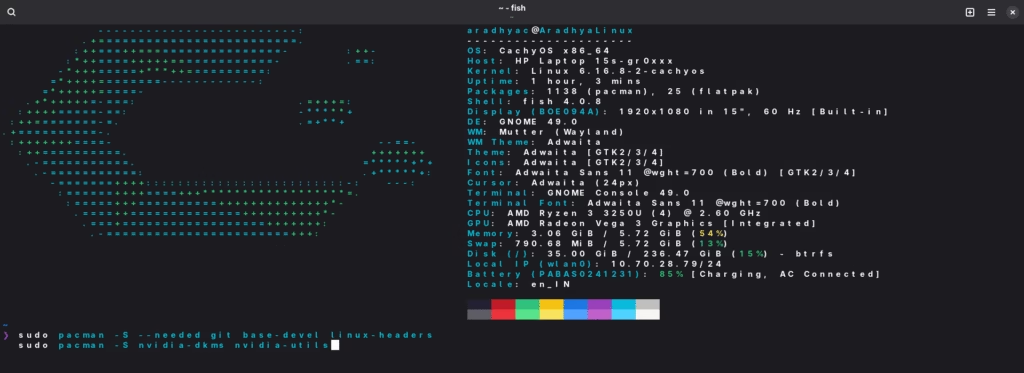
Installation Command (Example using nvidia-dkms):
sudo pacman -S --needed git base-devel linux-headers
sudo pacman -S nvidia-dkms nvidia-utils
(B) – Enabling multilib for 32-bit Support
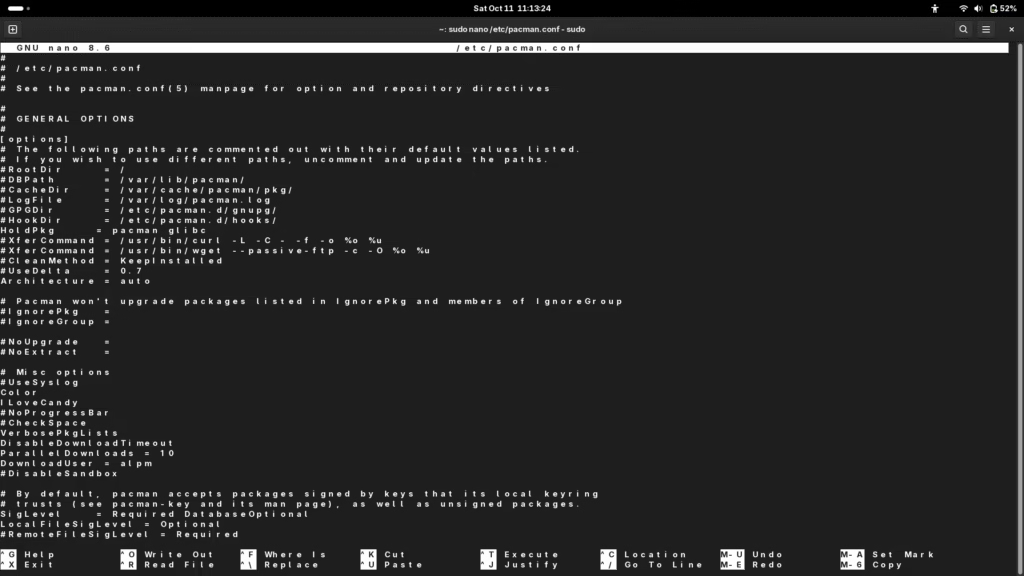
For gaming and applications like Steam, you must enable the multilib repository to install 32-bit compatibility libraries.
- Edit
/etc/pacman.conf:
By using this command – sudo nano /etc/pacman.conf
(C) Update your system and install the 32-bit utilities:
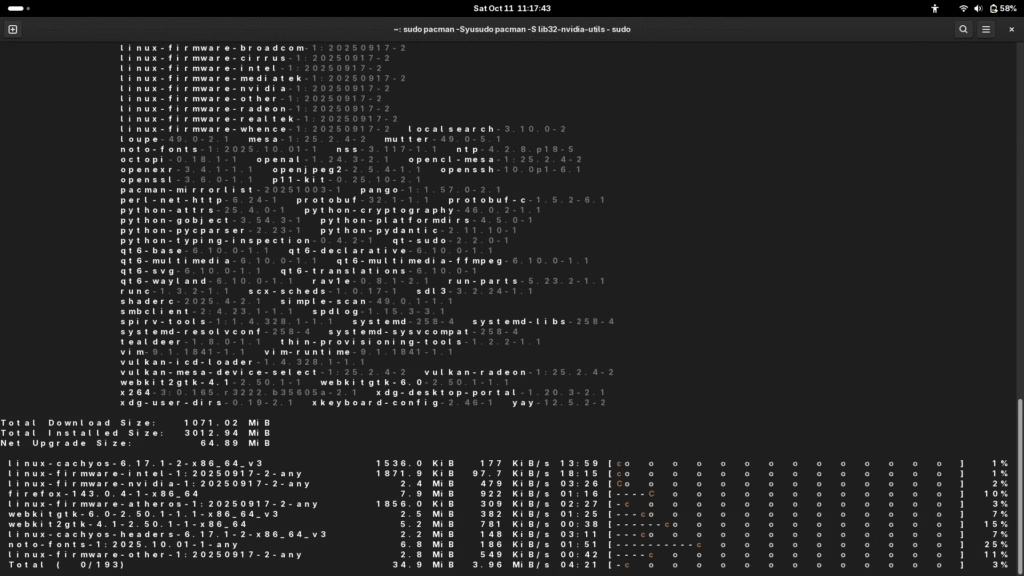
sudo pacman -Syu
sudo pacman -S lib32-nvidia-utils
(D) DRM Kernel Mode Setting: The Essential Prerequisite
For any Wayland compositor to function, the kernel must manage display modes directly. This is enabled through DRM (Direct Rendering Manager) Kernel Mode Setting (KMS). [ More Info ]
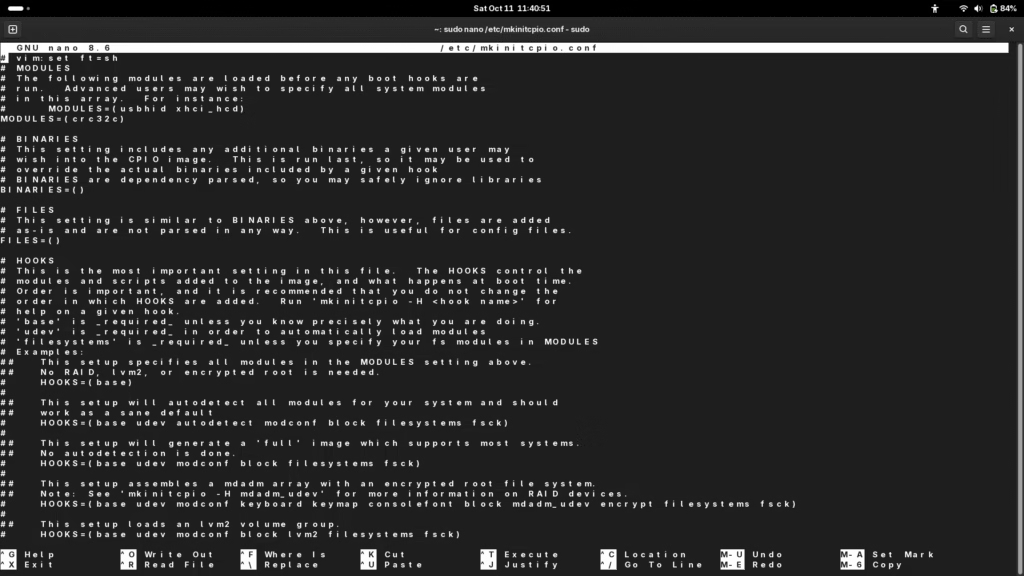
STEP 1: Add NVIDIA Modules to the Initramfs : This ensures the NVIDIA drivers are loaded early in the boot process.
sudo nano /etc/mkinitcpio.conf
STEP 2 : Add the following modules to the MODULES array :
MODULES=(nvidia nvidia_modeset nvidia_uvm nvidia_drm)
You can refer this extra commands to know more about driver installation [ More Info ]
STEP 3 : Regenerate the initramfs:
sudo mkinitcpio -P
KEYNOTE : I have already used and installed the wayland pre-requisites so have not shown the screenshots. Kindly ensure to follow above instructions.
Step 4 : Set Kernel Parameters
- For GRUB:
Edit /etc/default/grub
sudo nano /etc/default/grub
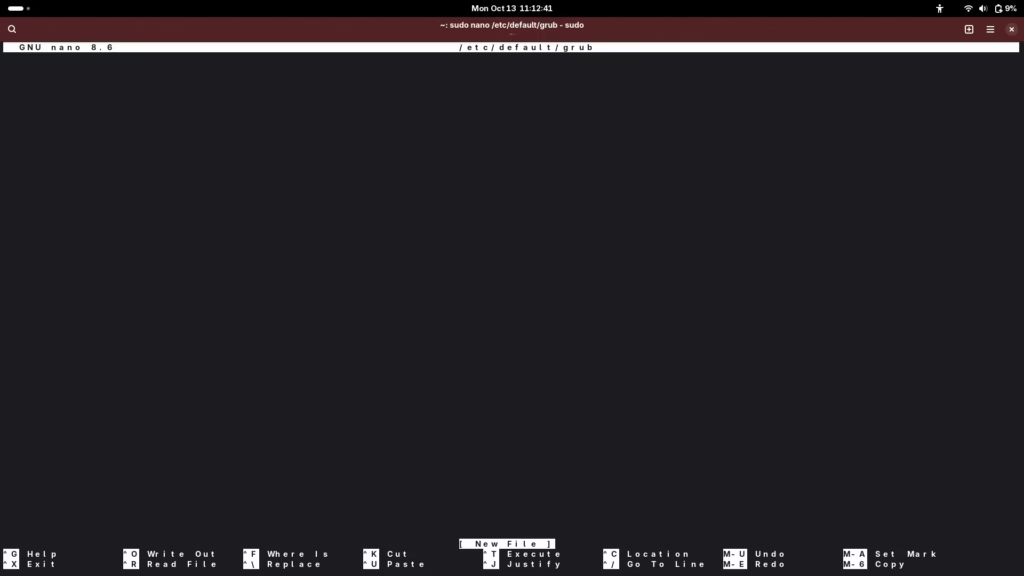
Append nvidia_drm.modeset=1 to the GRUB_CMDLINE_LINUX_DEFAULT line. Some users report that nvidia_drm.fbdev=1 also helps with stability and suspend issues
GRUB_CMDLINE_LINUX_DEFAULT="… nvidia_drm.modeset=1 nvidia_drm.fbdev=1"
Regenerate the GRUB configuration:
sudo grub-mkconfig -o /boot/grub/grub.cfg
- For Systemd Root options :
Edit your boot entry, typically located at /boot/loader/entries/arch.conf.
Append the parameters to the options line :
options root=… rw nvidia_drm.modeset=1 nvidia_drm.fbdev=1
Compositor Configuration: Taming Hyprland
Hyprland is a popular and highly customizable Wayland compositor. The following settings are crucial for a stable experience on NVIDIA hardware.
Setting Essential Environment Variables
Add the following environment variables to your Hyprland configuration file at ~/.config/hypr/hyprland.conf to ensure applications use the correct NVIDIA libraries and backend :
[ More Info ] , [ Tutorial ].
env = LIBVA_DRIVER_NAME,nvidia
env = __GLX_VENDOR_LIBRARY_NAME,nvidia
env = GBM_BACKEND,nvidia-drm
Strategies for Hybrid Graphics (NVIDIA Optimus)
Laptops with both an integrated (Intel/AMD) and a discrete NVIDIA GPU often present unique challenges.
- Important: Tools designed for X11, such as
optimus-manager, are not compatible with Wayland and must be uninstalled. - The Simple Solution (Discrete Graphics Mode): For laptop users who are primarily docked and connected to power, the most reliable method is to force the system to use only the NVIDIA GPU. This is done by entering your laptop’s BIOS/UEFI and changing the graphics mode from “Hybrid” to “Discrete”. This eliminates GPU switching complexities at the cost of battery life.
- The Hybrid Solution (
AQ_DRM_DEVICES): If you need to use hybrid mode, you may experience lag on external monitors. This often happens because the integrated GPU is incorrectly trying to render for a display connected to the NVIDIA GPU. You can tell Hyprland which GPU to prioritize by setting theAQ_DRM_DEVICESvariable. - First, identify your GPU device paths (e.g.,
/dev/dri/card0and/dev/dri/card1). - Then, add the variable to your
hyprland.conf, listing the desired primary render. - Example: Prioritize the dGPU (card1) for rendering
env = AQ_DRM_DEVICES,/dev/dri/card1:/dev/dri/card0
Related Referrenced Links you can visit for more clairity : [ More Info ] , [ Reddit Help ].
Troubleshooting Common Nightmares
Even with a correct setup, you may encounter some infamous NVIDIA-on-Wayland issues. Here’s how to fix them.
The Flickering Menace: Fixing Electron and XWayland Apps
Screen flickering in applications like VS Code, Discord, and others running on Electron or through the XWayland compatibility layer is a widely reported problem. This is caused by a historical mismatch in how NVIDIA’s drivers handled frame synchronization.
Read for referrence – [ Reddit Flickering Electron ], [ Wayland/HyperLand Issues with flickering ] , [ HyperLand with NVIDIA Confusion ]
The Definitive Fix (Explicit Sync): The long-term solution is to use a software stack that fully supports explicit synchronization. This was achieved with the NVIDIA 555 series driver (or newer) in combination with xorg-xwayland 24.1 and wayland-protocols 1.34. Ensure your system is fully updated. [ Common Apps Issues during flickering ]
Workarounds for Older Systems:
Force Native Wayland Mode: The most effective workaround is to bypass XWayland entirely. Add the following to your hyprland.conf to hint to most Electron apps that they should run in native Wayland mode
[ Fixing flickering in VS Code ]
env = ELECTRON_OZONE_PLATFORM_HINT,auto
For apps that don’t respect this, you may need to launch them with specific flags, such as --enable-features=UseOzonePlatform --ozone-platform=wayland.
Downgrade Drivers: If your GPU is not supported by the 555 driver series, the flickering was notably introduced in the 545 series. Downgrading to the 535xx series drivers is a known fix.
Multi-Monitor Mayhem: Solving Detection and Configuration Issues
Configuring multiple monitors can be tricky. A typical side-by-side setup in hyprland.conf might look like this :
Get monitor names in your terminal by running this command. A typical side-by-side setup in hyprland.conf might look like this :
monitor = eDP-1, 1920x1080@144, 0x0, 1
monitor = DP-1, 2560x1440@165, 1920x0, 1
- “Out of Scale” or “No Signal”: This error often occurs if the specified refresh rate is not exact. Run
hyprctl monitors allto get the precise floating-point value (e.g.,143.981995) and use that in your config instead of an integer. - Monitor Not Detected: Some users have reported that switching between the
nvidia-dkmsand the non-DKMSnvidiapackage resolved detection issues.
For a brief guide on “Out of scale” or ” No signal” or “How to configure monitors” please refer : “How to Configure Monitors” and ” Troubleshooting Monitors “.
The Elusive Sleep: A Practical Fix for Suspend/Resume
For laptop users, a common failure point is the system waking to a black or frozen screen after suspending. This is often due to a race condition where Hyprland tries to communicate with the NVIDIA driver after it has already gone to sleep.
If you are stuck in the suspended hyperland issue refer : “Suspended Hyperland issue” and “Fix of hyperland crashes“.
A robust community solution involves using systemd to orchestrate the process.
STEP 1 : Create a Control Script
Create a script at /usr/local/bin/suspend-hyprland.sh to pause and resume the Hyprland process.
#!/bin/bash
case "$1" in
    suspend)
        killall -STOP Hyprland
        ;;
    resume)
        killall -CONT Hyprland
        ;;
esac
Make it executable:
sudo chmod +x /usr/local/bin/suspend-hyprland.shSTEP 2 : Create systemd Services
Create two service files to run this script at the right time.
/etc/systemd/system/hyprland-suspend.service(runs before suspend):
[Unit]
Description=Suspend Hyprland
Before=systemd-suspend.service
Before=nvidia-suspend.service


Type=oneshot
ExecStart=/usr/local/bin/suspend-hyprland.sh suspend

[Install]
WantedBy=systemd-suspend.service/etc/systemd/system/hyprland-resume.service(runs after resume):
[Unit]
Description=Resume Hyprland
After=systemd-suspend.service
After=nvidia-resume.service


Type=oneshot
ExecStart=/usr/local/bin/suspend-hyprland.sh resume

[Install]
WantedBy=systemd-suspend.service
STEP3: Enable Services and Other Requirements
- Reload
systemdand enable the new services:
sudo systemctl daemon-reload
sudo systemctl enable hyprland-suspend.service
sudo systemctl enable hyprland-resume.service- Ensure NVIDIA’s own power management services are enabled (this is often done automatically on Arch) :
sudo systemctl enable nvidia-suspend.service
sudo systemctl enable nvidia-hibernate.service
sudo systemctl enable nvidia-resume.service
Add the nvidia.NVreg_PreserveVideoMemoryAllocations=1 kernel parameter via your bootloader configuration to prevent graphical corruption on resume.
Refer the articles for more deep information Wayland Hyperland NVIDIA :
“Suspension of Hyperland” , ” Hyperland issue solved ” , ” Hibernating on NVIDIA “
With these configurations in place, you should have a stable, performant, and fully-featured modern desktop. Welcome to Wayland on NVIDIA.
9 Ways Agentic AI with PySpark Transforms Big Data Processing
[GUIDE] Convert Windows 11 to AME Wizard: 7 Steps to a Streamlined System