# How to build a homelab: hardware, network and setup steps
Canonical: https://kextcache.com/build-homelab/
A homelab is a server, or a few computers and some network gear, that you run at home to learn IT skills, test software and host your own services. Building one takes five steps: decide what you want to learn, choose the hardware, set up the network, install an operating system or hypervisor, then secure and maintain it. Start with one machine and add more as your skills grow.
This guide covers the hardware and the build. For beginner projects and the software side, start with our [beginner's home server guide](/ultimate-home-lab-guide/).
## What is a homelab?
A homelab can be a single server or a small network of connected devices. It works as a sandbox: you can copy the setup of a company network on a smaller scale, and a mistake there costs you nothing.
Most homelabs have the same parts. Servers do the computing, the router manages traffic between your network and the internet, and switches connect the devices to each other. Knowing what each part does helps you plan a layout for what you want to test or learn.
A production network has to stay up. A homelab does not, so you can break things and learn how to fix them.
How to start a home lab: a beginner's guide to hardware, OS and first projects
## Why build a homelab?
- Learning: you practice networking, server management and other IT skills hands-on, whether you are a beginner or an advanced user.
- Testing: you can try new software, operating systems and configurations without touching a production system.
- Personal projects: you can host your own websites, cloud services or game servers, with full control over them.
- Career: hands-on experience gives you practical skills for IT jobs and something concrete to put on your resume.
For more ideas, see [what a home server can do for you](/server-uses-at-home-why-you-need-one-in-2025/).
## Step 1: plan your homelab
Start with what you want to learn, because your goal decides the equipment and software:
- Networking: you need routers, switches and possibly network simulation tools, so you can practice network design, configuration and troubleshooting.
- Virtualization: you need a server that can run a hypervisor such as Proxmox or VMware, so one physical machine can run several operating systems.
- Software development: you need environments for coding, testing and deploying applications. Docker or Kubernetes give you isolated environments for that work.
Then check your space and budget:
- Space: a dedicated room or corner is ideal if you plan to expand. Servers can be loud and warm, so think about ventilation and noise. If space is tight, a wall-mounted rack or compact server cases still work, and tidy cabling keeps the setup manageable.
- Budget: costs grow with the complexity of the setup. Buy what you need now rather than the latest equipment, start small, and add more as your skills and budget allow.
Before you buy, ask in online forums and homelab communities. Other homelabbers can point out common mistakes and help you choose equipment.
## Step 2: choose your hardware
A basic homelab needs a server, network equipment and storage, plus cables, power protection and cooling.
### Server
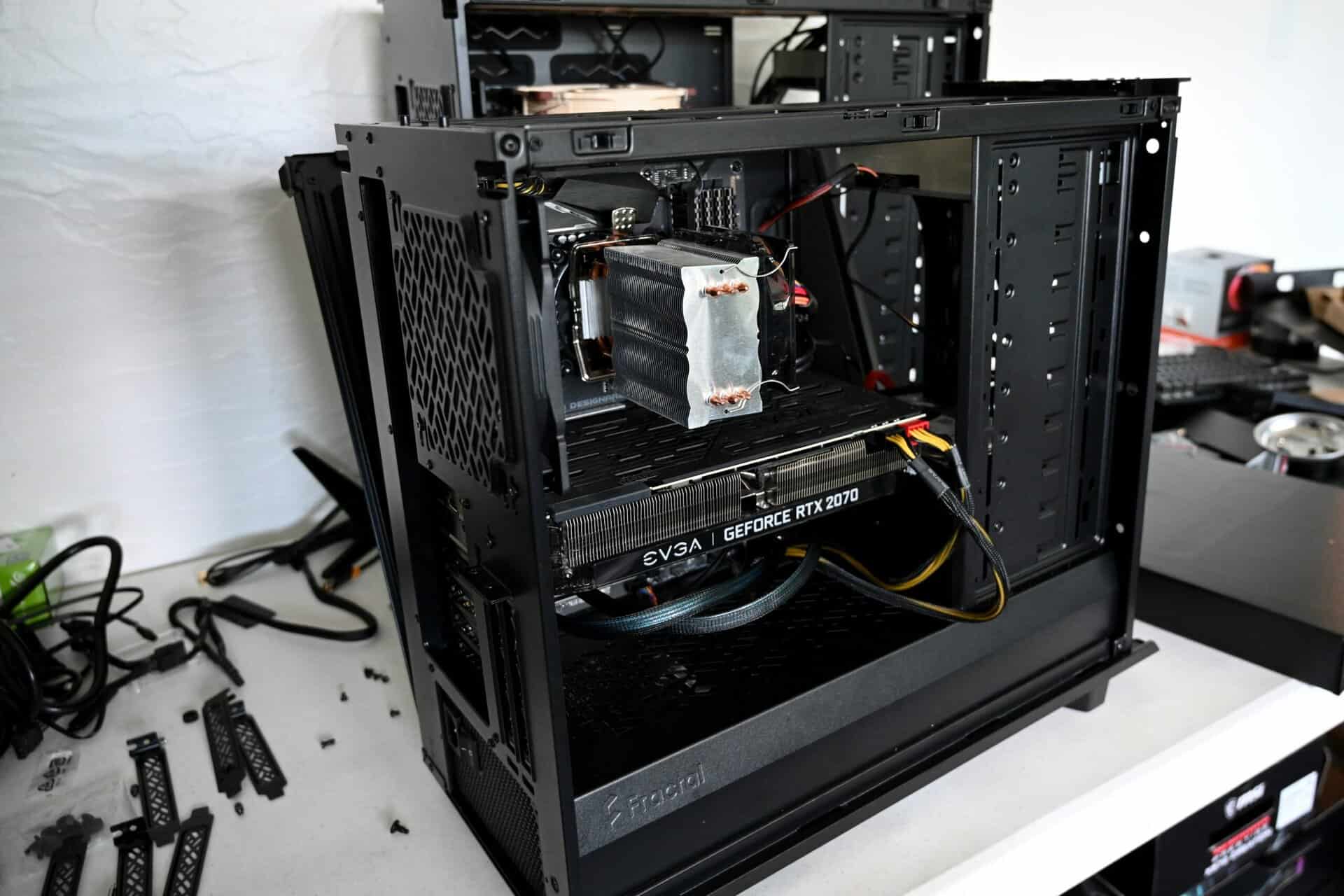
The server is the backbone of your homelab. You can start with one and add more later.
- New or used: new servers are expensive, and used or refurbished ones cost much less. Check that a used machine still meets your technical needs.
- Specs: get enough CPU power, RAM and storage for what you plan to run, with room to add RAM or drives later.
- Form factor: pick a tower, rackmount or mini server to suit your space. Tower servers are often quieter and take up less space, while rackmount servers suit larger setups with several devices.
- Role: a server for virtualization needs more RAM and CPU than one that only stores files.
Server lines to consider:
- Dell PowerEdge: known for reliability, and sold in many configurations.
- HP ProLiant: performs well for virtualization and supports a wide range of operating systems.
- Supermicro: a favorite of enthusiasts, because you can pick the exact components.
### Networking equipment
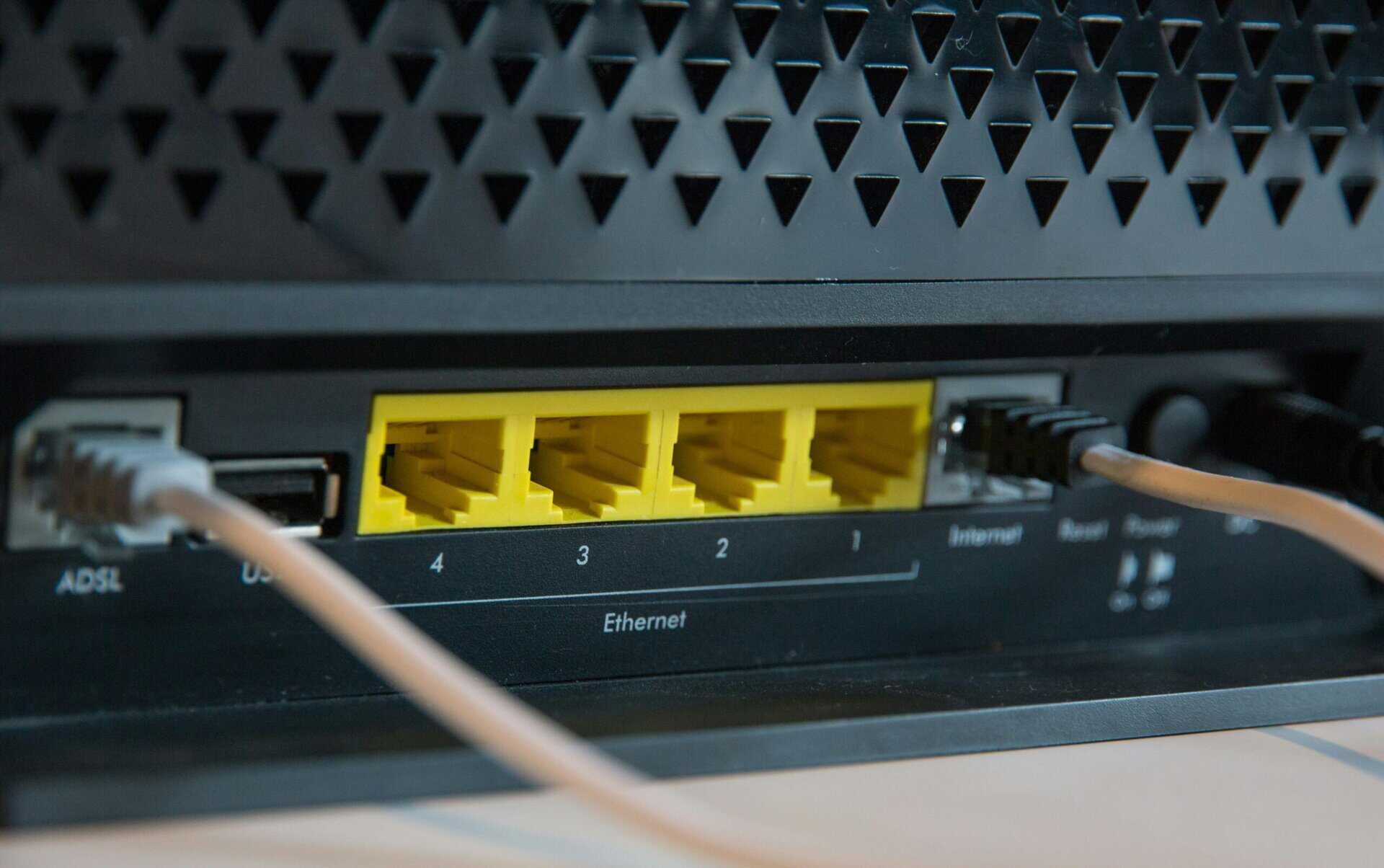
- Router: manages your network traffic. Look for dual-band Wi-Fi and good security options.
- Switch: connects several devices. A managed switch gives you more control over traffic.
- Firewall: a dedicated firewall appliance or a software firewall protects your network from outside threats.
For more advanced networking, choose equipment that supports VLANs (virtual local area networks) and Quality of Service (QoS), so you can separate and prioritize different kinds of traffic.
Specific products to consider:
- TP-Link Archer A7 router: a budget option with solid performance and dual-band Wi-Fi.
- Ubiquiti UniFi switches: managed switches with VLAN support and better traffic control, for more advanced users.
- Cisco ASA firewall: if security is a priority, Cisco's firewall products give you strong protection and settings that suit a homelab.
### Storage
- NAS devices: Synology and QNAP make NAS devices that are easy to use and include RAID, snapshots and cloud sync.
- External hard drives: plug-and-play storage for a tight budget.

Best NAS hard drives in 2026: IronWolf, WD Red and Toshiba N300 compared
### Cables, power and cooling
- Cables: Cat6 Ethernet cables are recommended for higher speeds and better performance over longer distances.
- UPS: an uninterruptible power supply keeps your servers and network equipment running through power cuts and protects them from surges, which prevents data loss and hardware damage.
- Surge protection: power strips with surge protection add another layer. Monitoring power use helps you cut energy costs.
- Cooling: keep the equipment ventilated. Add fans or air conditioning if the setup runs hot.
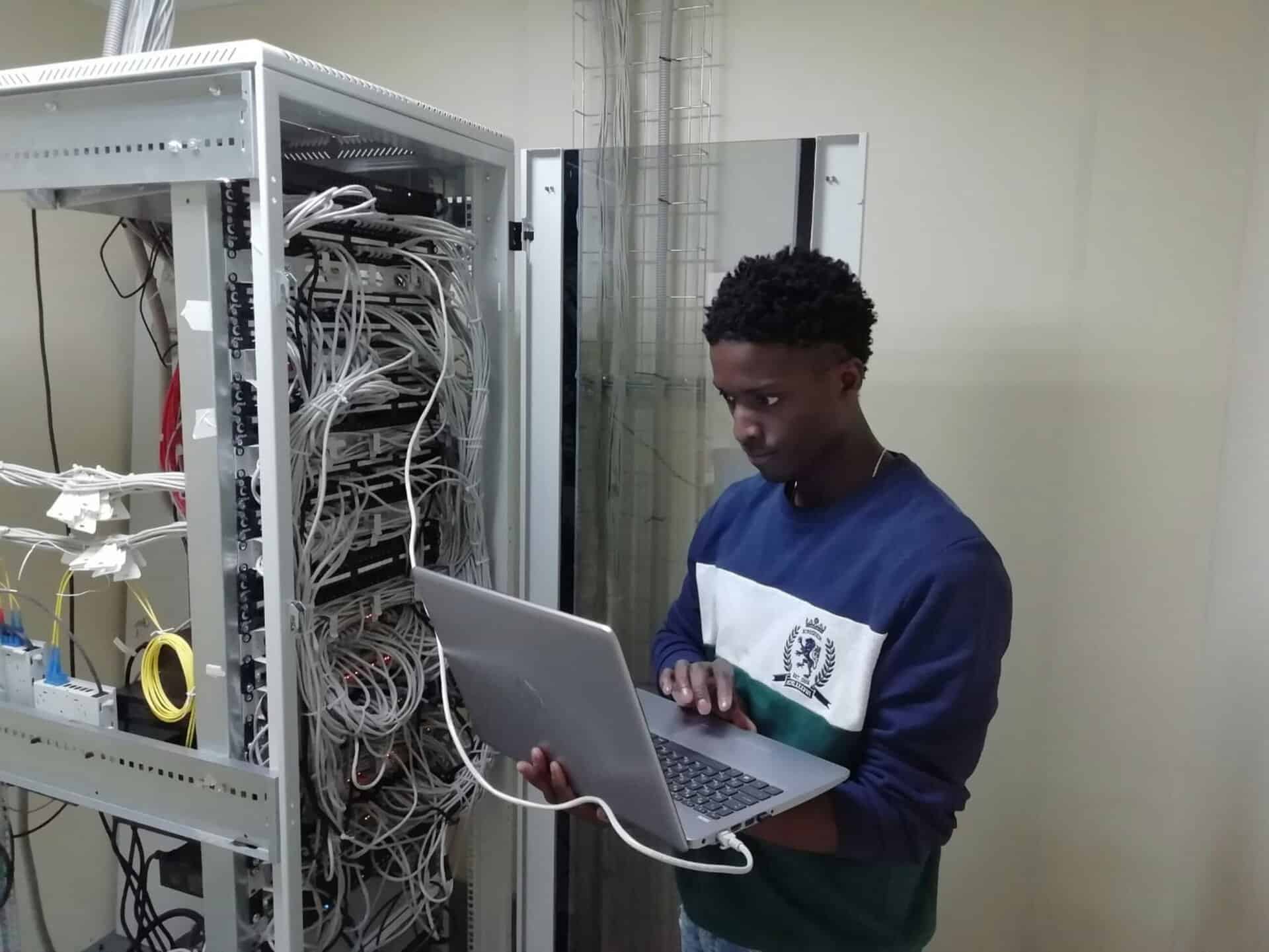
- Cable management: cable ties, labels and racks keep cables organized, which makes maintenance and troubleshooting easier.
Raspberry Pi 5 uses: 5 practical ways to put it to work
## Step 3: set up the network
1. Connect the devices: run Ethernet cables between your servers, switches and router, and make sure every connection is secure.
2. Configure the router: let it assign IP addresses with DHCP, and reserve static IPs for servers and network devices that need a fixed address.
3. Secure the network: configure the firewall and security settings, update firmware regularly, and watch the traffic for unusual activity.
Advanced router settings such as port forwarding, DMZ and VPN support give you more features and more control. Port forwarding and DMZ open devices to the internet, so use them only for services you mean to expose.
## Step 4: install the operating system and virtualization
1. Operating system: Linux distributions such as Ubuntu are popular for homelabs because they are flexible and run most tools. Our guide to the [best OS for home servers](/best-os-for-home-servers/) compares the main options. Weigh community support, compatibility with your applications and ease of use, and try a few before you settle on one.
2. Virtualization: VMware or VirtualBox lets you run several virtual machines on one server. Give each virtual machine enough resources, and keep an eye on storage use.
3. Storage: a NAS gives every device central access to your data, and RAID adds redundancy if a drive fails.
Back up your data regularly and replicate the important parts. Cloud storage adds an off-site copy and remote access. Once the OS is installed, our list of [home server software for Linux](/best-home-server-software-for-linux-in-2025/) has apps to run on it.
## Step 5: expand your homelab
- Add servers: more machines add computing power, and a cluster gives you high availability and load balancing.
- Upgrade the network: faster equipment and connections support more devices.
- Automate: Ansible or Puppet handle repetitive tasks, which cuts manual errors and frees up time for bigger projects.
Before you add hardware, check what it does to your power, cooling and network capacity. As the lab grows, review your network settings and traffic patterns to find bottlenecks, and use traffic prioritization or bandwidth limits where they help.
## What to run on your homelab
### Web development and testing
Set up web servers with WordPress or Joomla to get hands-on experience with deployment, maintenance and server-side scripting. Switch between Apache, Nginx and other web servers to test different configurations.
Top 24 Docker apps for your home server (2026 guide)
### Your own cloud storage
Set up your own cloud with Nextcloud or ownCloud to try file storage, sharing and collaboration tools.
### Security training labs
Use tools like Kali Linux to practice penetration testing on your own lab machines and learn about vulnerabilities in a controlled environment.
## Maintenance and troubleshooting
### Common problems and fixes
- Devices can't reach each other: check the cables and network settings, especially the IP address assignments on the router.
- A server or virtual machine is slow: watch CPU and RAM use, then give the virtual machine more resources or tune the guest operating system.
- Software won't install or run: check that the versions are compatible with your operating system, and install any required dependencies first.
### Regular maintenance
- Updates: keep software and firmware up to date, and check for updates on a schedule.
- Backups: automate them, and keep a copy on an external drive or in the cloud.
- Monitoring: Nagios, Zabbix or Grafana track system metrics and logs and warn you before a problem grows.
- Hardware: clean and inspect the equipment regularly, and read the system logs.
A written schedule for updates, backups and hardware checks keeps the lab reliable.
## Security best practices
### Use strong authentication
Turn on two-factor authentication (2FA) for every remote access tool.
### Segment your network
Split the network into segments, so that sensitive data sits apart from less secure devices. If one segment is breached, the rest of the network is not affected. VLANs on a managed switch are one way to do this.
### Keep software updated
Update the operating system and applications to close known vulnerabilities, and check for patches on a schedule.
## Where homelabs are heading
### Containers and orchestration
Container orchestration with tools like Kubernetes is gaining ground as applications grow more complex, and container skills carry over to IT jobs.
### AI in the homelab
AI can automate tasks or analyze network traffic for threats. To run language models on your own hardware, see our guide to [building a private AI server](/build-privacy-first-local-ai-server-2026/).
### Remote access
If you work from home, a homelab that supports remote access and collaboration is useful. That usually means a VPN or a remote desktop tool; our guide shows how to [set up a VPN to your home network](/set-up-vpn-to-home-network-guide/).
Building a homelab is a continuous process. Start small, learn as you go, and expand the setup as your skills and interests grow.