# OpenCore dual boot and multiboot guide: Windows 11 and Linux
Canonical: https://kextcache.com/opencore-dualboot-guide/
*Updated 18 Nov 2026: checked against OpenCore 1.0.8. OpenCore has found Windows on its own since 2020 and Linux through OpenLinuxBoot since 2021, so this guide now leads with that; the OpenShell method stays as the fallback, with its wrong shell steps and file name fixed and a missing step added.*
OpenCore 1.0.8 can start macOS, Windows 11 and Linux from one boot menu, on AMD or Intel. OpenCore finds a Windows 11 install on a GPT drive in UEFI mode by itself. Linux appears too when the distro installs the standard fallback loader, and the OpenLinuxBoot driver or one `BlessOverride` line adds it when it doesn't. Only a drive that OpenCore still misses needs the manual method this guide first used in 2020: read its device path in OpenShell and add it to `Misc > Entries`.
You can also use [Clover](/guide-install-clover-bootloader-in-usb-or-efi-partition/) as your bootloader, but we recommend OpenCore since it gives a more native Mac-like experience and is more stable. Dortania lists better overall stability, more macOS versions supported natively and faster boots. Clover still gets releases (r5176, 26 Oct 2026).
This page covers the OpenCore side. For install order, partitioning and the full Windows and Linux installs, see our [Hackintosh dual boot and multi boot guide](/hackintosh-dual-boot-multi-boot-guide/). If you are new to Hackintosh, start with [what a Hackintosh is](/what-exactly-is-hackintosh-in-general/).
> **Tested by our setup on 17 Nov 2026**
>
> - What we did: ran this guide's OpenCore steps in a QEMU virtual machine: the OpenShell commands, `Misc > Entries`, `BlessOverride` and OpenLinuxBoot
> - On: OpenCore 1.0.8 RELEASE; QEMU 10.0.13 with OVMF firmware (EDK II 2025.02); Debian 13 (kernel 6.12.117) as the Linux drive; a placeholder file at the Windows Boot Manager path in place of Windows; on our home server (Debian 13, KVM)
> - When: 17 Nov 2026
> - Not tested: real PC firmware, a real Windows 11 install, the Manjaro installer (we only inspected its 26.1.0 bootloader settings in the ISO), OpenCore Configurator, ProperTree, and anything on macOS
So let's get started.
## What we recommend for a dual boot Hackintosh with Windows 11
- **For every OS, use a separate SSD or HDD.** Dortania's multiboot guide calls separate drives the easiest layout. It is not required: one shared drive works too, and the OpenCore steps below are the same. If you share a drive, keep a single EFI partition on it, as Dortania's multiboot guide advises.
- **While you install each OS, connect only that drive and remove all others.** Dortania says to disconnect the other drives while installing, Windows in particular. All drives go back in after the installs.
## Hardware this guide was written on
- Intel i5 9400F
- 16GB Corsair RAM (2 x 8GB)
- Samsung 970 EVO PLUS 500GB
- Crucial MX500 500GB SSD
- Deepcool 750W Power Supply
- MSI B360 M-PRO-VDH.
- AMD Sapphire RX5700XT 8GB
- Corsair K95 Platinum RGB Keyboard / Apple Magic Keyboard
- Logitech G PRO Mouse.
- Logitech G433 Headset.
This is the build the guide was first written on, in May 2020. The 2026 checks in the "Tested by our setup" box ran in a virtual machine, not on this PC.
## Prerequisites
- A working macOS install with OpenCore on its drive's EFI partition. On AMD, macOS itself needs the AMD Vanilla patches; our [Hackintosh compatibility guide](/hackintosh-compatibility-is-your-computer-ready-in-2025/) covers which CPUs work.
- USB drives for the macOS, Windows and Linux installers. One drive can be reused for each. Apple says 32 GB is enough for any current macOS installer, and Microsoft asks for at least 8 GB for Windows media.
- Internet.
- [ProperTree](https://github.com/corpnewt/ProperTree) to edit `config.plist`. Don't use configurators such as OpenCore Configurator: Dortania's install guide says they "rarely respect OpenCore's configuration" and that Mackie's tool can "add Clover properties and corrupt plists".
- The release zip of the OpenCore version you run (1.0.8, 27 Sep 2026, is current). Its `Docs/Sample.plist` is used below.
## macOS Tahoe 26
**Connect the SSD you want to install macOS on.** The current version is macOS Tahoe 26.7.3, released on 9 Nov 2026, and it is the last macOS for Intel: Apple's list of macOS 27 compatible computers has no Intel Mac. Sequoia or older works too.
Install macOS as usual with your OpenCore USB drive. If you don't know how, our [macOS Tahoe Hackintosh guide](/macos-tahoe-hackintosh-guide/) walks through the OpenCore EFI, and this guide makes the USB installer:
Create a bootable macOS Tahoe 26 USB using Mist (2026 guide)
After a successful macOS install, remove the installer USB and the macOS SSD.
## Windows 11
Connect your second SSD and install Windows 11 in UEFI mode on a GPT drive. OpenCore does not support Windows installed in MBR mode. Windows 11 itself needs "UEFI, Secure Boot capable" firmware and TPM 2.0, according to Microsoft's specifications.
1. Make the installer with Microsoft's Media Creation Tool from the [Windows 11 download page](https://www.microsoft.com/en-us/software-download/windows11), or write the ISO with [Rufus](https://rufus.ie/) on any Windows PC. Rufus 4.15 (30 Jun 2026) is current, and the default download is the 64-bit build. In Rufus, set the partition scheme to **GPT** and the target system to **UEFI**.
2. Plug the USB in and start the installation.
3. Choose the drive. *If it's not a new drive, delete all its partitions and click Next.* This erases that drive, which is one more reason to have only the Windows drive connected.
4. Complete the installation and make sure you get to the Windows desktop.
Before restarting, check for Windows Update if you want everything up to date. Windows puts its own Boot Manager first in the firmware boot order, and does it again on upgrades, so expect to set the macOS drive first again later (see [Stop Windows taking over the boot order](#stop-windows-taking-over-the-boot-order)).
Our [Hackintosh dual boot guide](/hackintosh-dual-boot-multi-boot-guide/) covers the Windows install and Fast Startup. For a leaner Windows 11 afterwards, see [how to convert Windows 11 with AME Wizard](/convert-windows-11-to-ame-wizard/).
## Linux
**Disconnect macOS** and every other drive.
For this specific hack, in May 2020, I used **Manjaro Plasma KDE** as it has a beautiful UI and the power of **Arch Linux**. You can use any other Linux build.
**Keep in mind GRUB bootloader is no GAME, remove all the other SSD/HDDs before proceeding.**
With other drives connected, the Linux installer could put GRUB on another drive's EFI partition. The screenshots below are from Manjaro 20.0 in May 2020. The current release is Manjaro KDE Plasma 26.1.0, and its installer screens may look different.
So just follow along with the step-by-step screenshots below and understand the process. Don't rush, and ask for help in the comments if you get stuck.
Download the latest ISO from the [Manjaro website](https://manjaro.org/products/download/x86) and make a bootable USB with Rufus (Rufus runs on Windows only, which you now have). Insert the USB, boot from it and start the installer.
Step 4 erases the whole selected drive, so check the drive name before you click Next.
1\. Click Next
2\. Select Your Region
3\. Select your Keyboard Layout.
4\. Select SSD and Erase and Format with Swap/Hibernate

5\. Create a User Account

6\. Select Office(Optional)

7\. Finalize the Step, Recheck Everything.

8\. Install It.

## Post-installation: put all three systems in the OpenCore menu
So now you have 3 OSes on 3 separate SSDs.
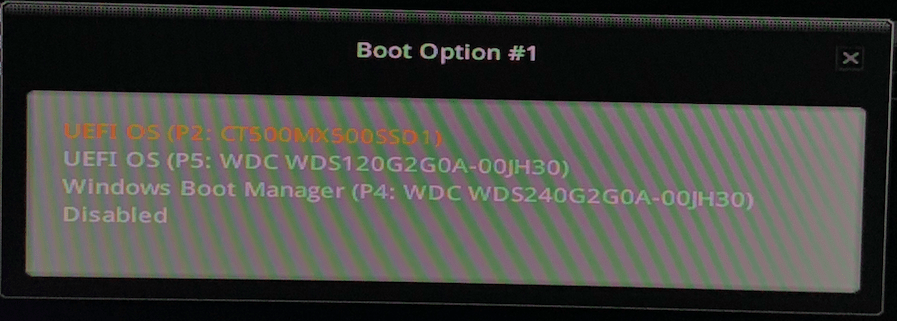
Connect all three drives and check in the BIOS that all of them are found. Then set the macOS SSD first in the boot order, because its EFI partition holds OpenCore.
### Windows: found automatically
Since OpenCore 0.5.9 (1 Jun 2020, three weeks after this guide first went up), OpenCore finds Windows Boot Manager at `\EFI\Microsoft\Boot\bootmgfw.efi` on its own. You don't need an entry for it. Dortania's install guide sets `Misc > Security > ScanPolicy` to `0`, which lets OpenCore see all drives. If you use a stricter value, it has to allow the Windows drive.
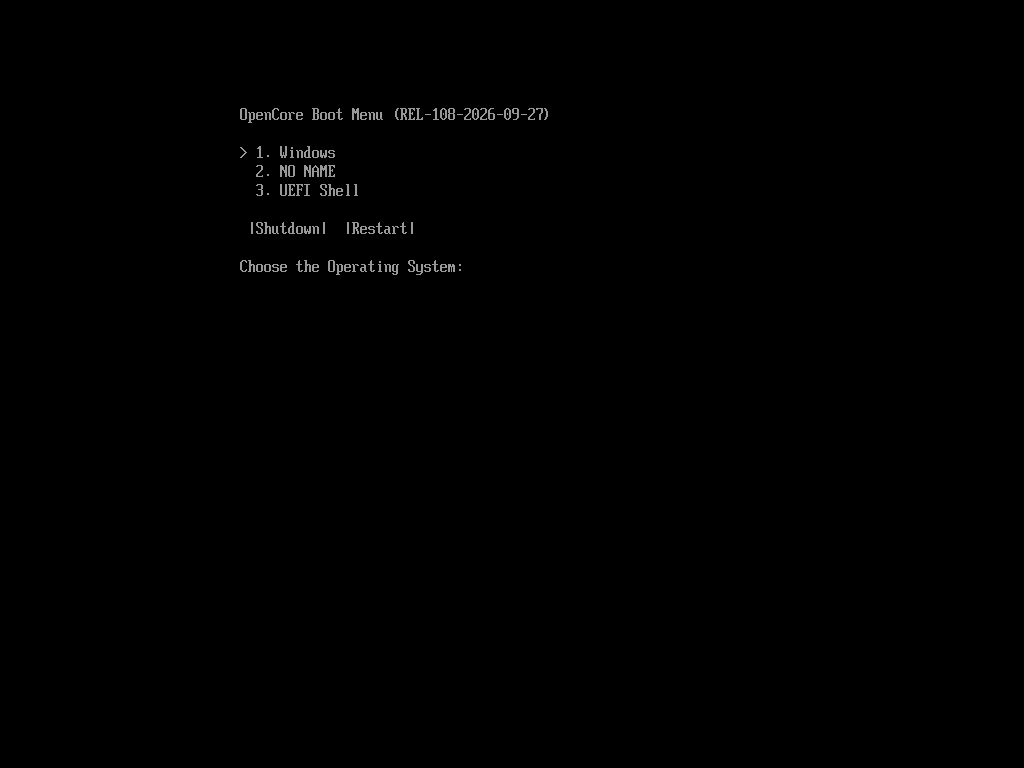
In our test VM, with no entries at all, OpenCore 1.0.8 listed `Windows` (a placeholder file at that path, not a real Windows install) and `NO NAME`. `NO NAME` was the Debian drive, found through its fallback loader `\EFI\BOOT\BOOTX64.EFI` and named after its EFI partition's volume label.
### Linux with OpenLinuxBoot
OpenLinuxBoot has shipped with OpenCore since 0.7.3 (September 2021). It finds the installed Linux kernel and starts it directly, without GRUB, and Dortania's multiboot guide lists it first. Copy `OpenLinuxBoot.efi` from the OpenCore release and `ext4_x64.efi` from acidanthera's [OcBinaryData](https://github.com/acidanthera/OcBinaryData) into `EFI/OC/Drivers`, then set:
*Tested by our setup on 17 Nov 2026: a QEMU/OVMF virtual machine with OpenCore 1.0.8 and Debian 13 (not on PC hardware).*
```text
UEFI > Drivers: OpenLinuxBoot.efi, ext4_x64.efi
UEFI > Quirks > RequestBootVarRouting: True
Misc > Boot > LauncherOption: Full
```
OpenCore's manual also says to remove any `BlessOverride` or `Entries` you set up for Linux, and recommends `Misc > Boot > HideAuxiliary` set to True. Sample.plist lists OpenCore's own ext4 driver, `Ext4Dxe.efi`, which can take the place of `ext4_x64.efi`; we tested `ext4_x64.efi`.
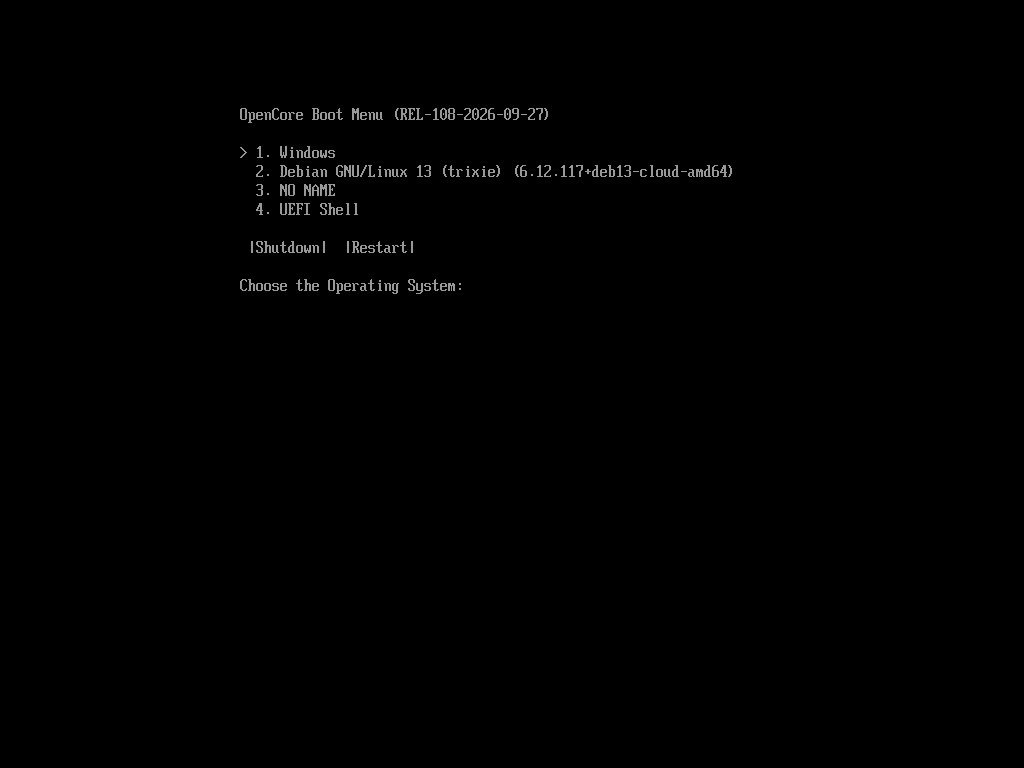
In our VM, the menu showed `Debian GNU/Linux 13 (trixie) (6.12.117+deb13-cloud-amd64)`, and choosing it started the kernel straight from OpenCore, with no GRUB screen. The login prompt came up after 5.8 seconds.
If the Linux kernel stops right after you choose it, with this or any method below, try `Booter > Quirks > SyncRuntimePermissions` set to True. In our VM, with Sample.plist's value (False), the Debian kernel panicked at boot after GRUB loaded it. With True, every Debian boot reached the login prompt. We did not test whether real PC firmware needs it.
### Linux with BlessOverride
If you'd rather keep GRUB, add its path to `Misc > BlessOverride`. It takes only the file path, no device path:
*Tested by our setup on 17 Nov 2026: a QEMU/OVMF virtual machine with OpenCore 1.0.8 and Debian 13 (not on PC hardware).*
```text
Misc > BlessOverride > Item 0: \EFI\debian\grubx64.efi
```
On a Debian drive with no `\EFI\BOOT` fallback loader, Debian did not appear in the menu until we added this line. With it, GRUB loaded and Debian booted.
The folder is named after the distro: Dortania lists `\EFI\arch\grubx64.efi`, `\EFI\ubuntu\grubx64.efi` and `\EFI\fedora\grubx64.efi`. For Manjaro, the 26.1.0 installer's settings name the folder `Manjaro`, so the path should be `\EFI\Manjaro\grubx64.efi`, the same as on the author's 2020 install. The same settings also install the fallback loader, so OpenCore may list Manjaro without any change, under its EFI partition's volume name. We read these settings from the ISO and did not install Manjaro, so check the folder name on your own drive with `DIR` in OpenShell (below).
### Stop Windows taking over the boot order
Microsoft documents that Windows puts Windows Boot Manager first in the firmware boot order when it installs, and moves it first again during upgrades. If your PC starts booting straight into Windows, set `RequestBootVarRouting` to True and `LauncherOption` to Full, the same two settings as in the OpenLinuxBoot step. OpenCore's manual says the first keeps operating systems from changing OpenCore's boot priority, and that `LauncherOption` Full allows integration with third-party operating system installs and upgrades. Then set the macOS drive first in the BIOS once more. We set both keys in our VM but did not test them against a real Windows install or upgrade.
## If Windows or Linux does not appear: add a manual entry
This is how the guide did it in 2020, with OpenCore 0.5.8. Use it for any drive OpenCore still misses. You find the drive's device path in OpenShell, add the bootloader's file path to it, and put the result in `Misc > Entries`.
### Enable OpenShell
OpenShell comes with OpenCore, at `EFI/OC/Tools/OpenShell.efi` in the release. Sample.plist ships it disabled and auxiliary, with `HideAuxiliary` on, so it won't be in the menu until you change that:
*Tested by our setup on 17 Nov 2026: a QEMU/OVMF virtual machine with OpenCore 1.0.8 (not on PC hardware).*
```text
Misc > Tools > OpenShell.efi > Enabled: True
Misc > Boot > HideAuxiliary: False
```
If you want to keep `HideAuxiliary` on, OpenCore's documentation says pressing Space in the menu shows auxiliary entries; we did not test that. In our VM the shell appeared as `UEFI Shell`. On the author's 2020 machine it was `OpenShell.efi`:

In our VM, OpenShell first failed with `StartImage failed - Invalid Parameter`. It started once we set `UEFI > Output > Resolution` back to Sample.plist's `Max` from a fixed 1024x768. We only saw this in the VM, but it's worth checking if you get the same error.
### Find the EFI partitions with map
You'll be greeted with a screen like this.
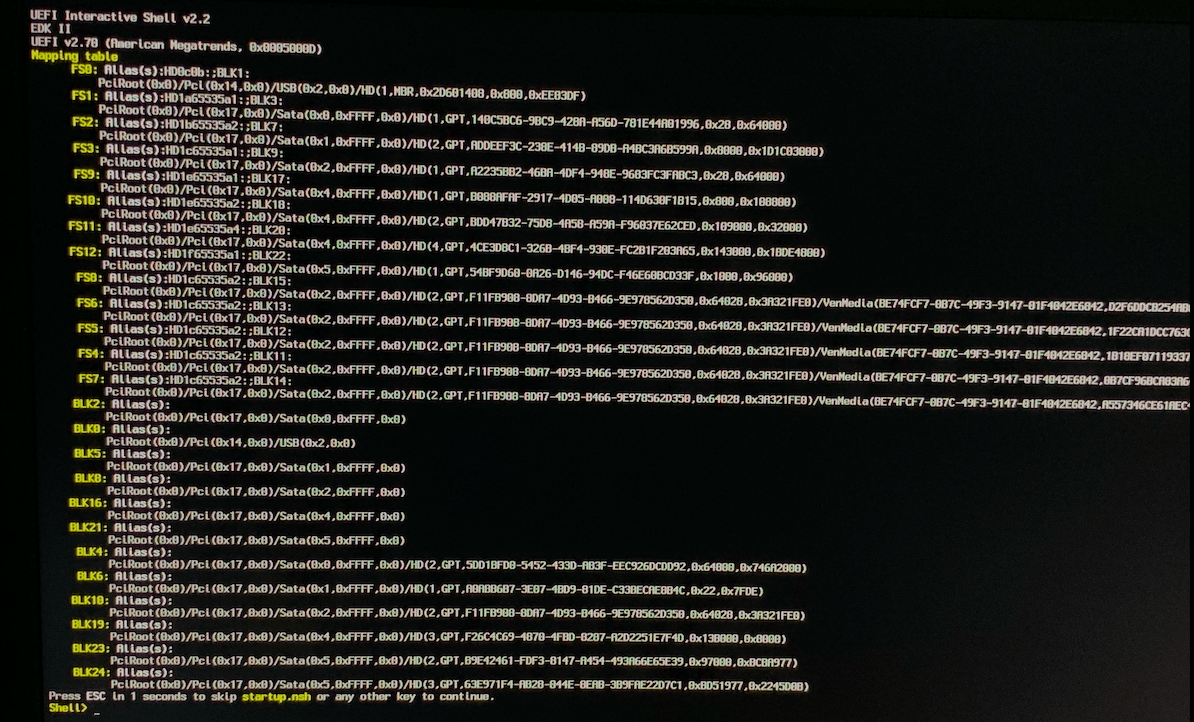
Each `FSn:` is a file system the firmware can read, mostly the FAT EFI partitions, not every partition on every drive. Numbering starts at `FS0:`. In our VM, `map` listed `FS0:` to `FS2:`, one for each EFI partition, while Debian's ext4 root partition showed up only as a `BLK` device. You have to work out which one is Windows and which one is Linux.
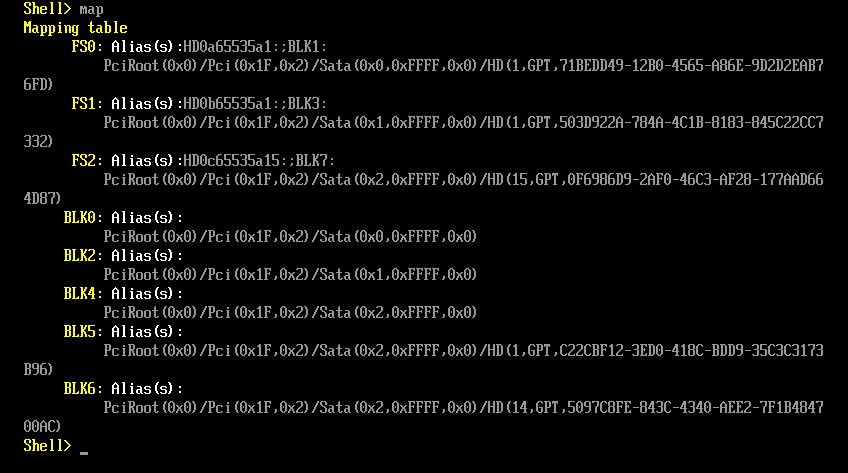
*Tested by our setup on 17 Nov 2026: a QEMU/OVMF virtual machine with OpenCore 1.0.8's OpenShell (not on PC hardware).*
```text
map
```
To look inside a partition, start with `FS0:`, then list it:
*Tested by our setup on 17 Nov 2026: a QEMU/OVMF virtual machine with OpenCore 1.0.8's OpenShell (not on PC hardware).*
```text
FS0:
DIR
```
Continue with `FS1:`, `FS2:` and so on until `DIR` shows an `EFI` folder, then look inside it and go back:
*Tested by our setup on 17 Nov 2026: a QEMU/OVMF virtual machine with OpenCore 1.0.8's OpenShell (not on PC hardware).*
```text
cd EFI
DIR
cd ../
```
The Windows EFI partition has a `Microsoft` folder inside `EFI`. A Linux one has a folder named after the distro, such as `Manjaro` or `debian`. The OpenCore one has `OC`.
In 2020 I found my Windows EFI partition in FS9:

Your numbers will be different: they depend on the drives and partitions in each machine.
When you find it, save the map table to a file:
*Tested by our setup on 17 Nov 2026: a QEMU/OVMF virtual machine with OpenCore 1.0.8's OpenShell (not on PC hardware).*
```text
map > map-table-windows.txt
```
The file is saved in the root of the partition you are on. `>` writes it as UTF-16 text. If your editor shows it oddly, `map >a map-table-windows.txt` writes plain ASCII instead; we checked both. Note the partition number or take a snap from your mobile, as we need to mention it later.
Then continue the search for the Linux partition the same way.

In 2020 I found mine in FS11. To double-check, type `cd EFI`: if the Manjaro folder is inside, it's the partition you are looking for.
Go back to the root of that partition with `cd ../` and save the map table again:
*Tested by our setup on 17 Nov 2026: a QEMU/OVMF virtual machine with OpenCore 1.0.8's OpenShell (not on PC hardware).*
```text
map > map-table-linux.txt
```
Now restart and boot into macOS.
### Mount the EFI partitions in macOS
To read the map files, mount the EFI partitions you saved them to. You don't need OpenCore Configurator's Tools > Mount EFI for this. Find the identifier of each EFI partition first, then mount it. `disk0s1` is only an example:
*From the official docs: `man diskutil` on macOS 26.7.3 (25G342), read 17 Nov 2026. Not tested for this guide.*
```bash
diskutil list
sudo diskutil mount disk0s1
```
corpnewt's [MountEFI](https://github.com/corpnewt/MountEFI) does the same from a menu. If you'd rather mount just one partition, switch to the OpenCore EFI partition's `FSn:` before running `map >` in the shell, and the file lands on the same partition as `config.plist`.


### Build the Windows and Linux paths
Open `map-table-windows.txt`, find the `FSn:` you noted, and copy its `PciRoot(...)` line into a new text file. Add the Windows Boot Manager path straight after it, with no space:
*Tested by our setup on 17 Nov 2026: a QEMU/OVMF virtual machine with OpenCore 1.0.8, where a full device path ending in this started our placeholder file. Not tested with a real Windows install.*
```text
/\EFI\Microsoft\Boot\bootmgfw.efi
```
It will look something like this after:
*Not tested by us in 2026: the path from the author's May 2020 machine (OpenCore 0.5.8), with the space before `/\EFI` removed.*
```text
PciRoot(0x0)/Pci(0x17,0x0)/Sata(0x4,0xFFFF,0x0)/HD(2,GPT,BDD47B32-75D8-4A58-A59A-F96037E62CED,0x109000,0x32000)/\EFI\Microsoft\Boot\bootmgfw.efi
```
Do the same with `map-table-linux.txt` and the Linux EFI partition, adding the GRUB path for your distro after it:
*Not tested: the Manjaro 26.1.0 installer's settings name the folder `Manjaro` (we read them from the ISO). Check yours with `DIR` in the shell.*
```text
/\EFI\Manjaro\grubx64.efi
```
It'll look something like this after:
*Not tested by us in 2026: the path from the author's May 2020 machine, with the space before `/\EFI` removed.*
```text
PciRoot(0x0)/Pci(0x17,0x0)/Sata(0x5,0xFFFF,0x0)/HD(1,GPT,54BF9D60-0A26-D146-94DC-F46E60BCD33F,0x1000,0x96000)/\EFI\Manjaro\grubx64.efi
```
The 2020 examples had a space before `/\EFI`. In our OpenCore 1.0.8 test the space did no harm, but OpenCore's docs and Sample.plist join the two parts without one, so leave it out.
### If map leaves out the start and size
Look at the `HD(...)` part of your line. In the 2020 table it has five values: the partition number, `GPT`, the partition GUID, the start and the size. In our 2026 VM, with OVMF firmware, `map` and `map -v` printed only the first three, for example `HD(1,GPT,503D922A-784A-4C1B-8183-845C22CC7332)`. An entry built from that line failed with `OCB: LoadImage failed - Not Found`, with or without the space. The same entry with the start and size added booted. We did not test which real PC firmware prints them.
The start is the partition's first sector and the size is its length in sectors, both written in hex. From Linux, `sgdisk` (in the gdisk package) prints both. Use the partition number from `HD(...)` and your drive's name:
*Tested by our setup on 17 Nov 2026, on our VM's disk images: sgdisk from gdisk 1.0.10, run on the image files in the test container rather than on a `/dev` device.*
```text
sudo sgdisk -i 15 /dev/sda
```
For the Debian EFI partition in our VM, it printed these lines, among others:
*Tested by our setup on 17 Nov 2026, on our VM's disk images: output of the command above for the Debian EFI partition.*
```text
Partition unique GUID: 0F6986D9-2AF0-46C3-AF28-177AAD664D87
First sector: 8192 (at 4.0 MiB)
Last sector: 262143 (at 128.0 MiB)
Partition size: 253952 sectors (124.0 MiB)
```
8192 is `0x2000` and 253952 is `0x3E000` in hex (`printf '0x%X\n' 253952` prints the second), so the node became `HD(15,GPT,0F6986D9-2AF0-46C3-AF28-177AAD664D87,0x2000,0x3E000)`. Check that the `Partition unique GUID` matches the GUID in your `map` line.
### Add the entries in ProperTree
Mount the EFI partition of the macOS drive, the one with OpenCore, and open `EFI/OC/config.plist` in ProperTree. Copy the `CustomOS` entry from your OpenCore release's `Docs/Sample.plist` into `Misc > Entries`, then set:
*Tested by our setup on 17 Nov 2026: a QEMU/OVMF virtual machine with OpenCore 1.0.8. We added the entries with a script (Python plistlib), not ProperTree, and OpenCore's ocvalidate reported no issues.*
```text
Name: Windows 11
Path:
Enabled: True
Arguments: (leave empty)
Flavour: Auto
```
Add a second entry the same way for Linux, with its own `Name` and `Path`. Save, restart, and both should be in the OpenCore menu.
OpenCore's manual warns that `Entries` paths "are not checked". A wrong path only fails when you choose it, as `OCB: LoadImage failed - Not Found` in our VM. ocvalidate, the checker in the release's `Utilities` folder, passed our broken entries too, so it won't catch a bad path.
This is how the two entries looked in the author's 2020 config, made in OpenCore Configurator with OpenCore 0.5.8:
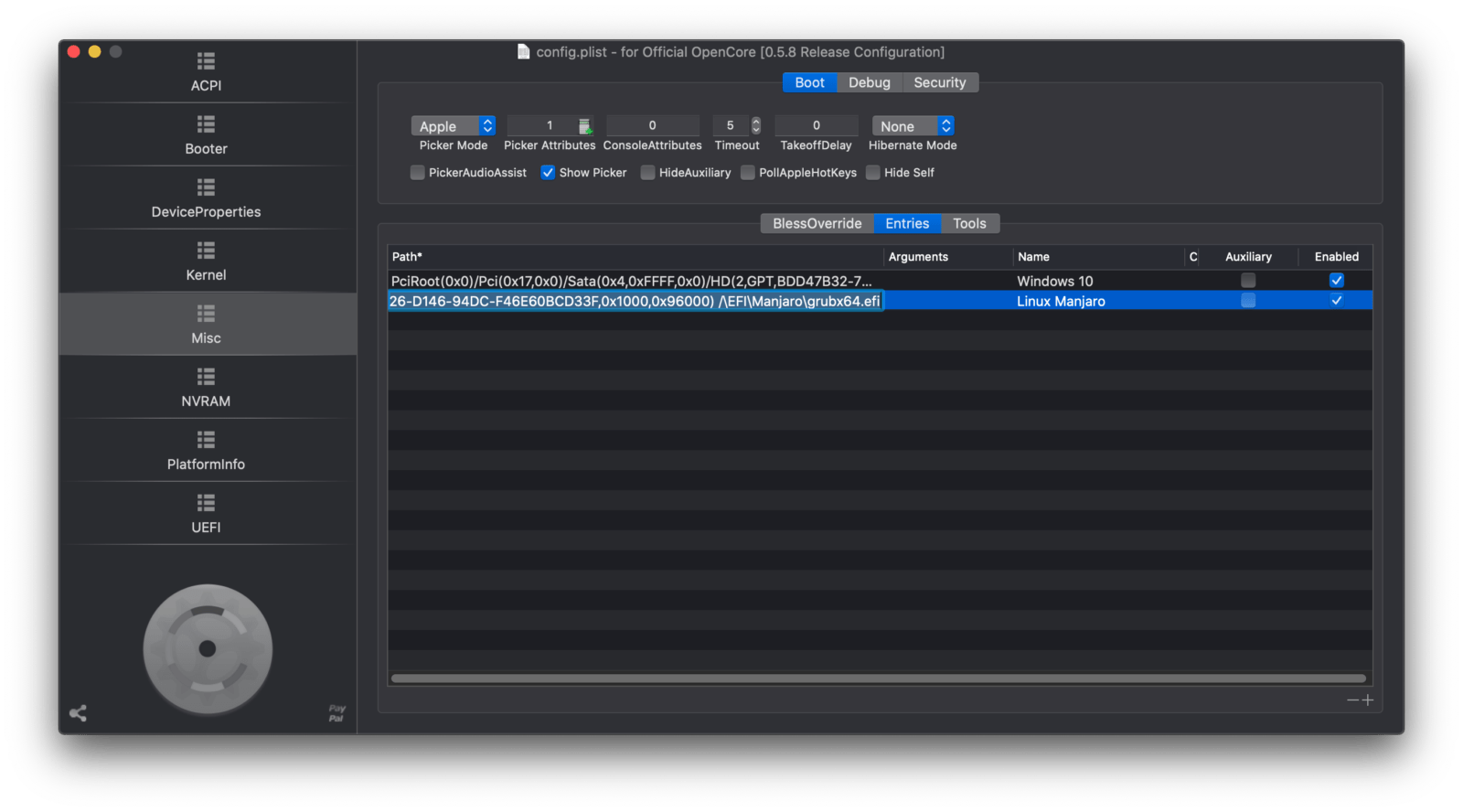
So, here you go.
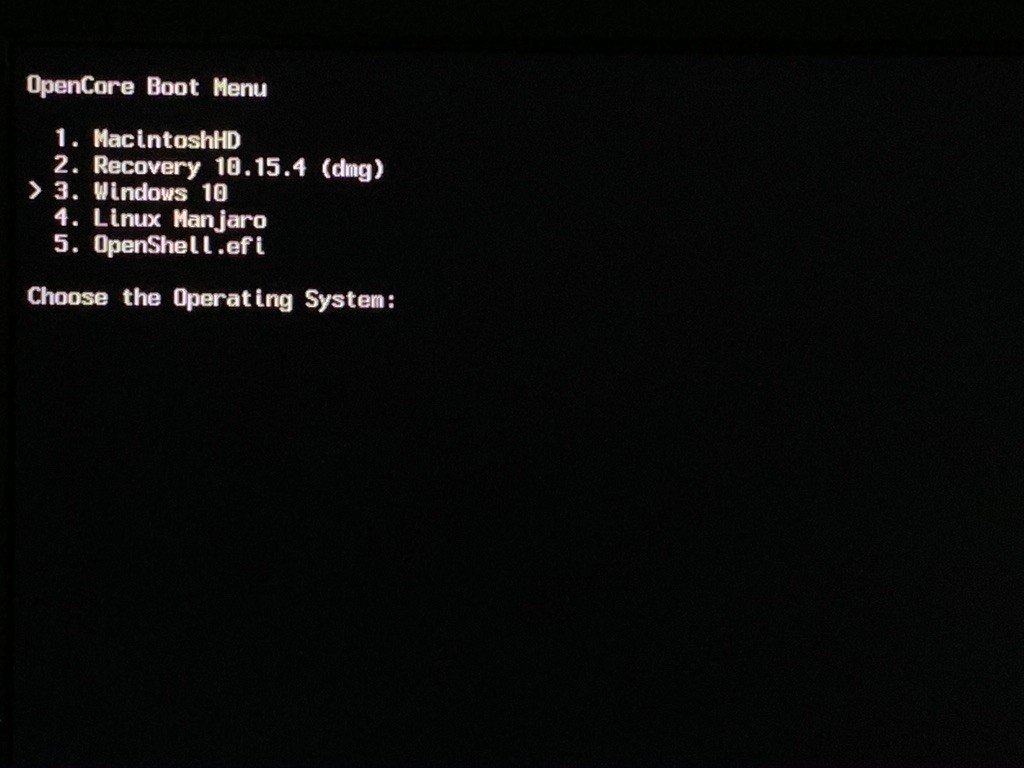
Thanks to [sarkrui for the original steps](https://github.com/sarkrui/Hackintosh-Z390-Aorus-Pro-9700K-RX580/wiki/How-to-add-a-boot-entry-in-OpenCore) this method is based on.
## What Windows and Linux see through OpenCore
By default, OpenCore gives every operating system the same ACPI and SMBIOS data, Dortania notes, so Windows and Linux started from OpenCore see your Mac model. In our VM, Debian reported `Acidanthera iMac19,1`, the placeholder model in Sample.plist. We did not run Windows. If the Mac SMBIOS causes trouble in Windows, for example with activation, OpenCore's manual describes `PlatformInfo > UpdateSMBIOSMode` set to `Custom` with `Kernel > Quirks > CustomSMBIOSGuid` on, which keeps the Mac SMBIOS to macOS. Dortania suggests it only if something breaks.
## Changes
- 18 Nov 2026: updated for OpenCore 1.0.8 and macOS Tahoe 26.7.3. The ways OpenCore finds Windows and Linux without manual entries (auto-detection, OpenLinuxBoot, BlessOverride) now come first, and the OpenShell method is the fallback.
- 18 Nov 2026: fixed the shell steps: numbering starts at `FS0:`, the map file is `.txt` (not `.text`), and paths take no space before `/\EFI`. Added the missing start and size step, without which a path copied from today's `map` output did not boot in our test.
- 18 Nov 2026: replaced OpenCore Configurator with `diskutil` and ProperTree; added OpenShell setup, the Windows boot order fix and the SMBIOS note; added a "Tested by our setup" box from a virtual machine test.
- 18 Nov 2026: removed the "OpenCore 1.0.4 just dropped" line (1.0.4 came out in March 2025), the Medium-hosted images, a dead Broadcom guide reference and the Windows 10 gaming link.