# Locked out after a macOS upgrade? A fix for the FileVault login issue
Canonical: https://kextcache.com/filevault-login-issue-fix/
*Updated 18 Nov 2026: added how the upgrade to macOS Tahoe can turn FileVault back on, Apple's first checks and its resetpassword assistant, corrected the user UUID step, the error message and the progress loop, and marked the crash-recovery steps as untested.*
If your Mac rejects a password you know is right after a macOS upgrade and FileVault is on, check the keyboard layout and Caps Lock first, then run Apple's `resetpassword` assistant from macOS Recovery. If that doesn't get you in, unlock and decrypt the Data volume with `diskutil` in the Recovery Terminal, log in, and turn FileVault back on.
You’ve just finished upgrading macOS, but there’s a major problem: you can’t log in. You’re certain you’re typing the right password, but your Mac won’t accept it, leaving you stuck on the login screen.
I got locked out this way when I upgraded to macOS Tahoe, which turned FileVault back on. Apple's [deployment guide for IT admins](https://support.apple.com/guide/deployment/manage-filevault-with-device-management-dep0a2cb7686/web) says that on macOS 26.4 or later, "FileVault is turned on during Setup Assistant by default". [TidBITS reported](https://tidbits.com/2025/09/17/macos-26-tahoe-pushes-filevault-use/) in September 2025 that signing in with an Apple Account while setting up macOS 26 turns FileVault on automatically. Neither says whether an upgrade does the same.
On an Apple silicon Mac, the latest upgrade is macOS 27. It runs only on Apple silicon, so the newest an Intel Mac or a Hackintosh can run is macOS Tahoe 26.x. This guide covers all three, and a few steps differ:
| | Apple silicon Mac | Intel Mac | Hackintosh |
|---|---|---|---|
| Newest macOS | macOS 27 | Tahoe 26.x at most | Tahoe 26.x at most |
| Start up in Recovery | Hold the power button, then Options | Hold Command-R | Pick Recovery in the OpenCore boot picker |
| Decryption (Step 4) | Can finish at once | At once with a T2 chip, in the background without one | Runs in the background |
| Turn FileVault back on | Yes | Yes | Yes, after checking the OpenCore settings |
Don’t panic. Both fixes use the Terminal in Recovery Mode, and this guide will walk you through every step.
> **Tested by our setup on 17 Nov 2026**
>
> - What we did: inspected a working Hackintosh with FileVault on, using read-only commands. Nothing was unlocked, decrypted or rebooted.
> - On: Intel Core i9-9980HK, UHD 630, 64 GB, macOS 26.7.3 (25G342), a 30 Aug 2026 pre-release build of OpenCore 1.0.8
> - When: 17 Nov 2026
> - Not tested: the Recovery steps, `resetpassword`, unlocking, decrypting, resuming a paused decryption, Apple silicon and T2 Macs, macOS 27
**Disclaimer:** This is an advanced fix. Please follow the steps carefully. The process is safe, but it’s always wise to have a backup of your important data if possible.
Broadcom FullMAC Wi-Fi on macOS Sonoma, Sequoia and Tahoe with AppleBCMWLANCompanion
## Before you begin: the one thing you absolutely need
The entire recovery process depends on you knowing your **passphrase**. For most users, this is simply your regular user account password that you use to log in. Make sure you have it ready.
Your FileVault recovery key works too. It is a 24-character code, and Apple says it can be used in Recovery or at the login window instead of your password. On macOS Tahoe 26 or later, you may find it in the Passwords app on another device signed in to the same Apple Account.
## Check the simple things first
Apple's own advice for a login password that doesn't work starts with these checks:
- Make sure you are typing your Mac login password, not your Apple Account password.
- Make sure Caps Lock is off.
- "Check the Input menu in the corner of the login window to be sure that your keyboard is set for the correct language."
On a Hackintosh, the keyboard layout comes from the `prev-lang:kbd` key in OpenCore's config.plist. Dortania recommends leaving it blank, and its guide notes that the sample config.plist sets it to Russian. If you kept that value, the login screen may be reading your keys as a Russian layout.
## Start up in macOS Recovery and open Terminal
- **For [Apple silicon Macs](https://support.apple.com/en-us/102518) (M1, M2, M3, etc.):** Shut down your Mac. Press and hold the power button until you see the “Loading startup options” screen. Select “Options,” then click “Continue.”
- **For Intel-based Macs:** Shut down your Mac. Turn it on and immediately press and hold **Command (⌘) + R** until you see the Apple logo or a spinning globe.
- **For a Hackintosh:** Command-R doesn't apply here. Pick the macOS Recovery entry in the OpenCore boot picker. If it isn't listed, press Space: with `HideAuxiliary` on, OpenCore hides Recovery until you do.
Recovery may ask you to select a user you know the password for and enter that user's password. If it accepts yours, the Data volume may already show as unlocked in Step 1.
When the Recovery window appears, open the **Utilities** menu in the menu bar and select **Terminal**.
## Try Apple's resetpassword assistant
Apple now documents a fix for this exact symptom. In Terminal, type this and press Return:
*From the official docs: [If you forgot your Mac login password](https://support.apple.com/en-us/102633), Apple Support, published 22 Sep 2026. Not run by us.*
```bash
resetpassword
```
In the assistant that opens, choose **My password doesn't work when logging in** and follow its steps. Apple says it then asks you to create a new password for your account. If you still can't log in afterwards, decrypt the drive as described below.
## The step-by-step guide to decrypting your drive
This is the last resort before erasing anything. Run every command in the Recovery Terminal you opened above, and follow them carefully.
### Step 1: Find your encrypted Data volume
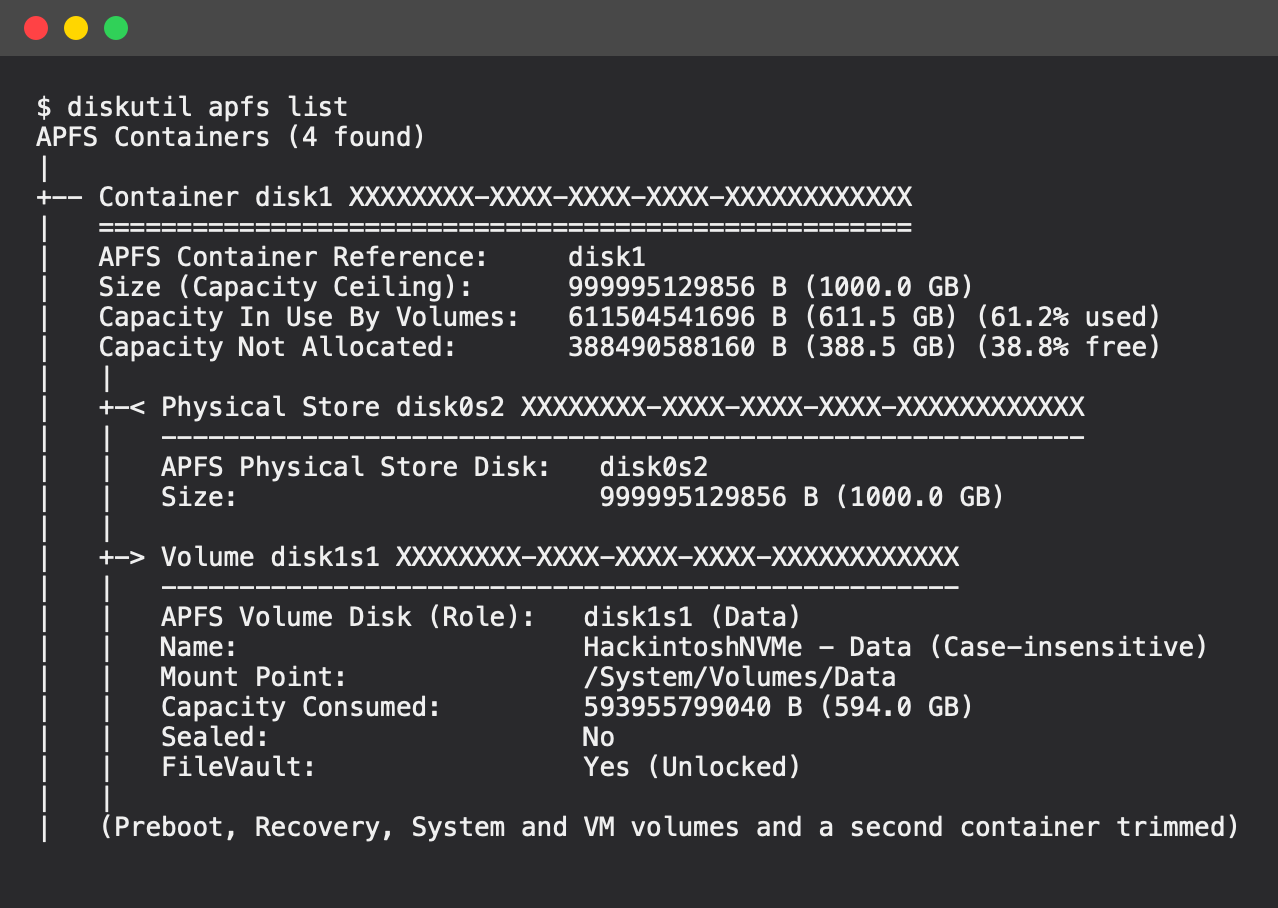
First, list all the APFS volumes to find the identifier of your Data volume.
*Inspected by our setup on 17 Nov 2026: Intel Core i9-9980HK, macOS 26.7.3 (25G342), on a running system, not in Recovery.*
```bash
diskutil apfs list
```
Look through the output for the volume whose role reads `(Data)`. Its name follows the name of your disk, so it may be `Macintosh HD - Data` or something else. On the Hackintosh we inspected, it is `HackintoshNVMe - Data`. You need two things from it:
1. The `FileVault:` line. A locked volume shows `FileVault: Yes (Locked)`. If Recovery already accepted your password, it may show `Yes (Unlocked)`.
2. Its identifier, which will look like `diskXsY` (e.g., `disk3s5`; on our Hackintosh it is `disk1s1`). It differs from Mac to Mac.
**Remember this identifier**, as you will need it for all subsequent commands.
### Step 2: Unlock the volume
Now, use the identifier you found to unlock the drive. Replace `diskXsY` with your specific identifier. If Step 1 already showed `Yes (Unlocked)`, skip to Step 3.
*From the official docs: the `diskutil apfs unlockVolume` usage text and `man diskutil` on macOS 26.7.3, read 17 Nov 2026. Not run by us: it needs Recovery and a locked volume.*
```bash
diskutil apfs unlockVolume /dev/diskXsY
```
The system will prompt you to enter your passphrase. This is your user account password, and the recovery key works here too. If it is accepted, `diskutil apfs list` should now show the volume as `FileVault: Yes (Unlocked)`.
### Step 3: Find your user’s UUID
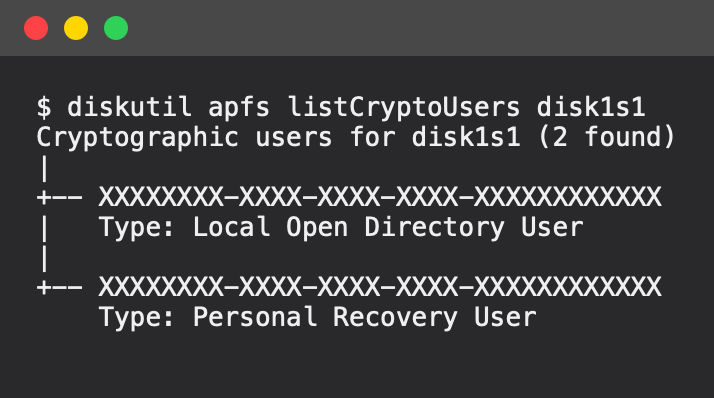
Next, you need to get the unique ID for your user account on the encrypted volume.
*Inspected by our setup on 17 Nov 2026: Intel Core i9-9980HK, macOS 26.7.3 (25G342), on a running system, not in Recovery.*
```bash
diskutil apfs listCryptoUsers /dev/diskXsY
```
You’ll see a list of cryptographic users. Each UUID sits on its own line, with the user's type on the line below it. Copy the UUID above `Type: Local Open Directory User`: this is your **user UUID**. The `Personal Recovery User` is your FileVault recovery key. The lowercase `listcryptousers` works too.
### Step 4: Start the decryption
It’s time to begin the main process. In the command below, replace `diskXsY` with your volume identifier and `UUID_OF_LOCALUSER` with the actual UUID you copied from the previous step. The volume must be unlocked first (Step 2).
*From the official docs: the `diskutil apfs decryptVolume` usage text and `man diskutil` on macOS 26.7.3, read 17 Nov 2026. Not run by us: it turns FileVault off.*
```bash
diskutil apfs decryptVolume /dev/diskXsY -user UUID_OF_LOCALUSER
```
Enter your passphrase one last time when prompted. On a Hackintosh or an Intel Mac without a T2 chip, decryption now runs in the background, and Step 5 shows how far it has got. On Apple silicon and T2 Macs, which keep the data encrypted in hardware, it can finish at once. The man page says: "Depending on hardware, the operation may be accomplished immediately".
### Step 5: Check the decryption progress
To see how the decryption is going, run the list command again.
*Inspected by our setup on 17 Nov 2026: Intel Core i9-9980HK, macOS 26.7.3 (25G342). The command ran, but no decryption was in progress, so we have not seen the progress line. Its format comes from the `diskutil` program itself.*
```bash
diskutil apfs list
```
Look for your volume. During decryption, `diskutil` prints a status line and a progress line, such as `Decryption Progress: 15.0%`.
### Watch the decryption live
To avoid having to run the command over and over, this loop clears the screen and shows your volume every 5 seconds. Replace `diskXsY` with your identifier and keep the space before the closing quote, so the pattern doesn't also match a longer identifier.
*Inspected by our setup on 17 Nov 2026: Intel Core i9-9980HK, macOS 26.7.3 (25G342), on a running system (not in Recovery) and a volume that was not decrypting: three passes, each on a cleared screen. The progress lines never appeared, so we could not check that 10 lines are enough. If they are cut off, raise `-A10`.*
```bash
while true; do printf '\033[2J\033[H'; diskutil apfs list | grep -A10 'Volume diskXsY '; sleep 5; done
```
To stop it, press **Control + C**.
A perfect macOS Tahoe Hackintosh in 2026: the final Intel build
---
## Troubleshooting: what if my Mac crashes during decryption?
If your Mac reboots in the middle of this process, don’t worry. You may find the decryption paused.
*Not tested: we have not interrupted a decryption. These steps come from forum reports from 2017 to 2020, most of them from the High Sierra (10.13) era. `diskutil` does have paused states for decryption.*
1. Reboot back into **Recovery Mode** and open **Terminal**.
2. Run `diskutil apfs list` and check the status of your volume. It may show the decryption as paused.
3. **Unlock the volume again** using the command from Step 2: `diskutil apfs unlockVolume /dev/diskXsY`.
4. Run `diskutil apfs list` once more. Forum reports say the decryption usually resumes on its own.
5. If it doesn’t resume, open a **new, separate Terminal window** (leave the first one open) and run `/usr/libexec/apfsd`. This is a community workaround, and no Apple document describes it. On a running macOS 26.7.3 system, launchd starts `apfsd` by itself. We have not checked whether it does the same in Recovery.
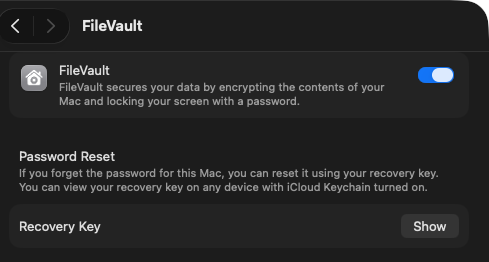
Once the decryption is 100% complete, you can restart your Mac from the Apple menu. You should now be able to log in with your password as usual. After confirming everything works, you can choose to re-enable FileVault in **System Settings > Privacy & Security > FileVault**. On a Hackintosh, check your OpenCore settings first (see the FAQ below).
If this happened after updating a Hackintosh, our guide to [updating a Hackintosh step by step](/update-your-hackintosh/) covers backing up the EFI and updating the bootloader and kexts before macOS. If you're new to Hackintosh, start with [what a Hackintosh is and how it works](/what-exactly-is-hackintosh-in-general/).
## Changes
- 18 Nov 2026: added Apple's first checks, the `resetpassword` assistant, the Hackintosh Recovery and keyboard layout notes, a table of what differs by Mac, and a "Tested on" box.
- 18 Nov 2026: corrected the user UUID step (the label is `Local Open Directory User`), the error a wrong identifier gives, and the live progress loop, which did not clear the screen.
- 18 Nov 2026: added that decryption can be immediate on Apple silicon and T2 Macs, marked the crash-recovery steps as untested, and changed the advice on turning FileVault back on for a Hackintosh.
- 18 Nov 2026: added how the upgrade to macOS Tahoe turned FileVault back on, with Apple's note that FileVault is on by default in Setup Assistant from macOS 26.4.